Installing the Mobile App
Kuviq is a Progressive Web App (PWA) that can be installed on your mobile device for an app-like experience.
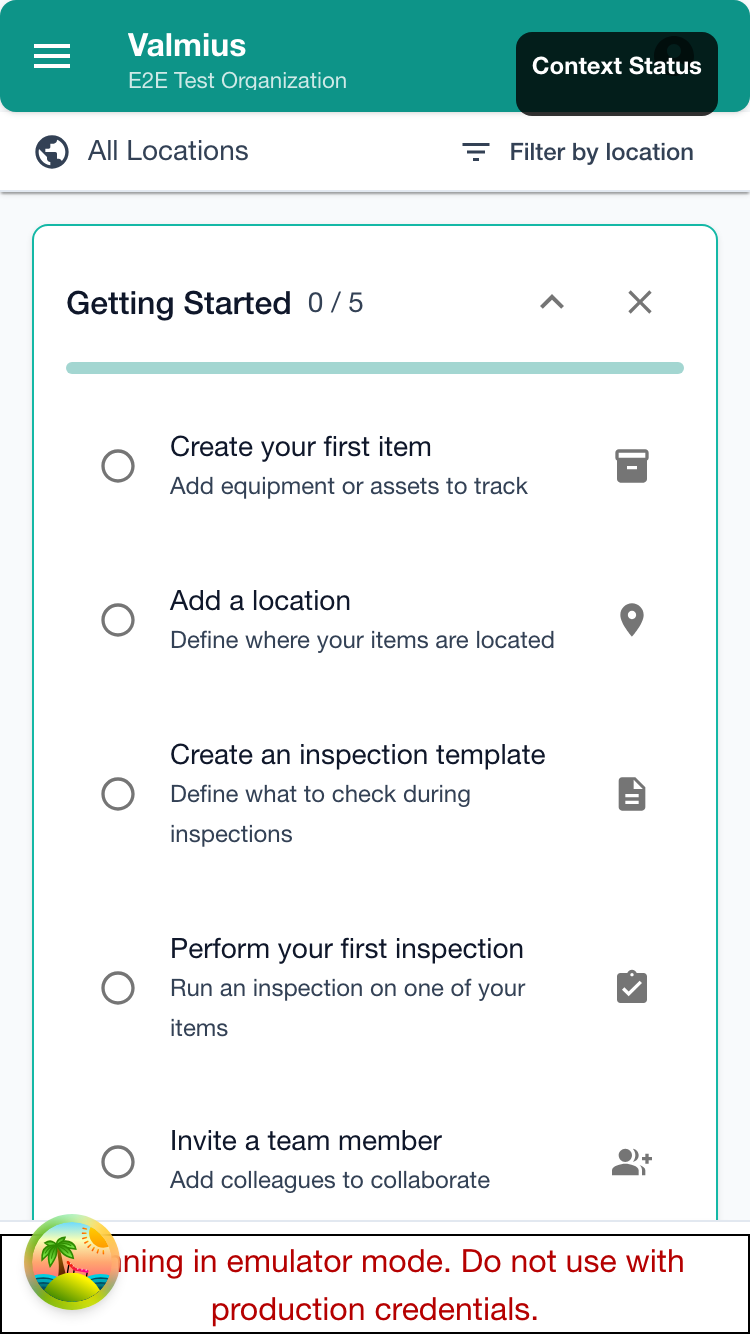
Benefits of Installing
- Quick access - Launch from your home screen like a native app
- Offline support - Continue working without internet
- Push notifications - Receive alerts for overdue inspections
- Full screen - No browser address bar for more screen space
- Camera integration - Quick access for QR scanning and photos
Installation Instructions
iOS (iPhone/iPad)
- Open Safari (required - other browsers won't work)
- Navigate to app.kuviq.io
- Tap the Share button (square with arrow pointing up)
- Scroll down and tap "Add to Home Screen"
- Enter a name (or keep "Kuviq") and tap Add
- The app icon will appear on your home screen
Safari Required
On iOS, you must use Safari to install PWAs. Chrome, Firefox, and other browsers don't support PWA installation on iOS.
Android
Option 1: Install Banner (Recommended)
- Open Chrome and navigate to app.kuviq.io
- You may see an "Add to Home Screen" banner at the bottom
- Tap Install or Add
- The app will be added to your home screen
Option 2: Manual Installation
- Open Chrome and navigate to app.kuviq.io
- Tap the three-dot menu (⋮) in the top right
- Tap "Add to Home screen" or "Install app"
- Confirm by tapping Add or Install
- The app icon will appear on your home screen
Desktop (Chrome, Edge)
- Navigate to app.kuviq.io
- Look for the install icon in the address bar (usually on the right)
- Click Install
- The app will open in its own window and appear in your applications
After Installation
First Launch
- Log in with your existing credentials
- Your data syncs automatically
- Enable notifications when prompted
Enabling Notifications
When you first open the installed app, you'll be prompted to enable notifications:
- Tap Allow when the notification prompt appears
- If you missed it, go to Settings in the app
- Enable push notifications
Updating the App
PWAs update automatically:
- Updates download in the background
- You may see a prompt to refresh for the latest version
- No app store updates needed
Troubleshooting
"Add to Home Screen" Not Showing
- iOS: Make sure you're using Safari
- Android: Make sure you're using Chrome
- Try refreshing the page
- Clear browser cache and try again
App Not Working Offline
- Make sure you've visited key pages while online first
- Data caches as you browse
- Check that you're not in private/incognito mode
Notifications Not Working
- Check your device's notification settings
- Ensure Kuviq has notification permissions
- Check in-app notification settings
- Try reinstalling the app
Removing the App
iOS:
- Long-press the app icon
- Tap Remove App or the minus (-) icon
- Confirm deletion
Android:
- Long-press the app icon
- Drag to Uninstall or tap Remove
- Confirm
Desktop:
- Open the app
- Click the three-dot menu
- Select Uninstall
Comparison: PWA vs Browser
| Feature | Installed PWA | Browser |
|---|---|---|
| Home screen icon | ✅ | ❌ |
| Full screen mode | ✅ | ❌ |
| Push notifications | ✅ | Limited |
| Offline support | ✅ Full | ✅ Full |
| Camera access | ✅ | ✅ |
| Auto-updates | ✅ | ✅ |
Next Steps
- Quick Tour - Learn the interface
- Basic Setup - Configure your organization
- Offline Inspections - Work without internet