Notification Center
Learn how to view and manage notifications in Kuviq.
Accessing Notifications
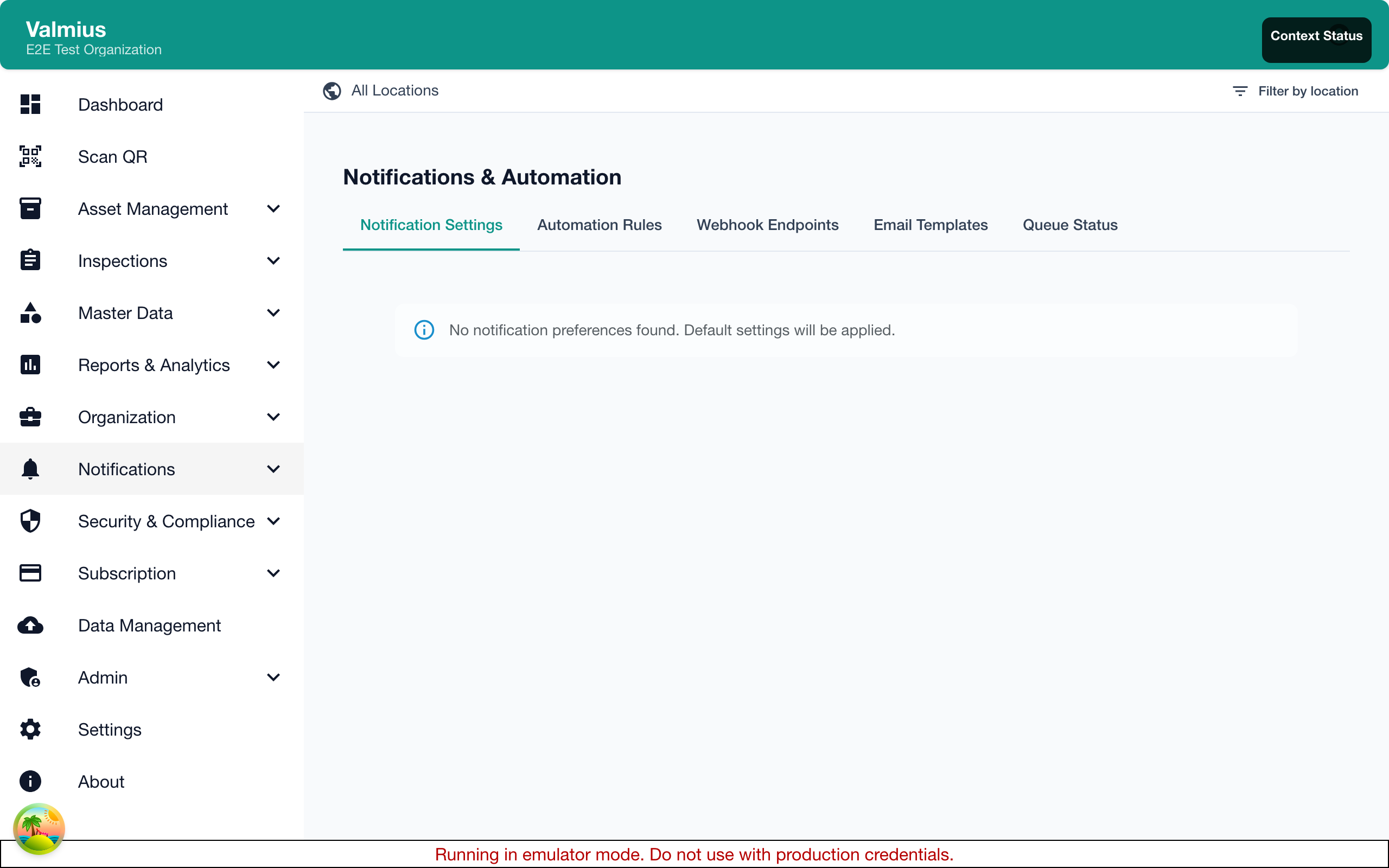
From Navigation
Click Notifications in the main menu to open the notification center.
Notification Badge
A badge on the notification icon shows:
- Number of unread notifications
- Red badge for urgent items
Understanding the Notification Center
Layout
The notification center displays:
- List of notifications - Sorted by time (newest first)
- Filter options - Filter by type or status
- Mark all read - Clear all unread markers
Notification Cards
Each notification shows:
| Element | Description |
|---|---|
| Icon | Type indicator |
| Title | Brief summary |
| Description | More details |
| Time | When it occurred |
| Status | Read/Unread indicator |
Types of Notifications
Inspection Notifications
| Type | When Sent |
|---|---|
| Due Soon | Inspection within warning period |
| Due Today | Inspection due today |
| Overdue | Inspection past due date |
| Completed | Inspection you're tracking was finished |
| Failed | Inspection failed, may need action |
Action Notifications
| Type | When Sent |
|---|---|
| Assigned | Corrective action assigned to you |
| Due Soon | Action due date approaching |
| Overdue | Action past due |
| Completed | Action you assigned was completed |
System Notifications
| Type | When Sent |
|---|---|
| Welcome | Account setup completion |
| Updates | System changes or improvements |
| Maintenance | Scheduled downtime notices |
| Account | Password changes, security alerts |
Administrative Notifications
For admins/managers:
| Type | When Sent |
|---|---|
| User Activity | New user joined, etc. |
| Escalations | Issues escalated to your level |
| Usage Alerts | Approaching plan limits |
| Trial | Trial expiration reminders |
Reading Notifications
Viewing Details
Click any notification to:
- Mark it as read
- See full details
- Navigate to related item/inspection
Quick Actions
Some notifications include actions:
- View Item - Open item details
- Start Inspection - Begin the inspection
- View Action - Open corrective action
- Dismiss - Remove notification
Managing Notifications
Marking as Read
Individual:
- Click the notification
- Or click the checkmark icon
All:
- Click Mark All as Read
Filtering Notifications
Filter by:
- All - Show everything
- Unread - Only unread items
- Type - Specific notification types
Deleting Notifications
To remove notifications:
- Hover over the notification
- Click the delete/trash icon
- Confirm deletion
Or use Clear All to remove all read notifications.
Notification Settings
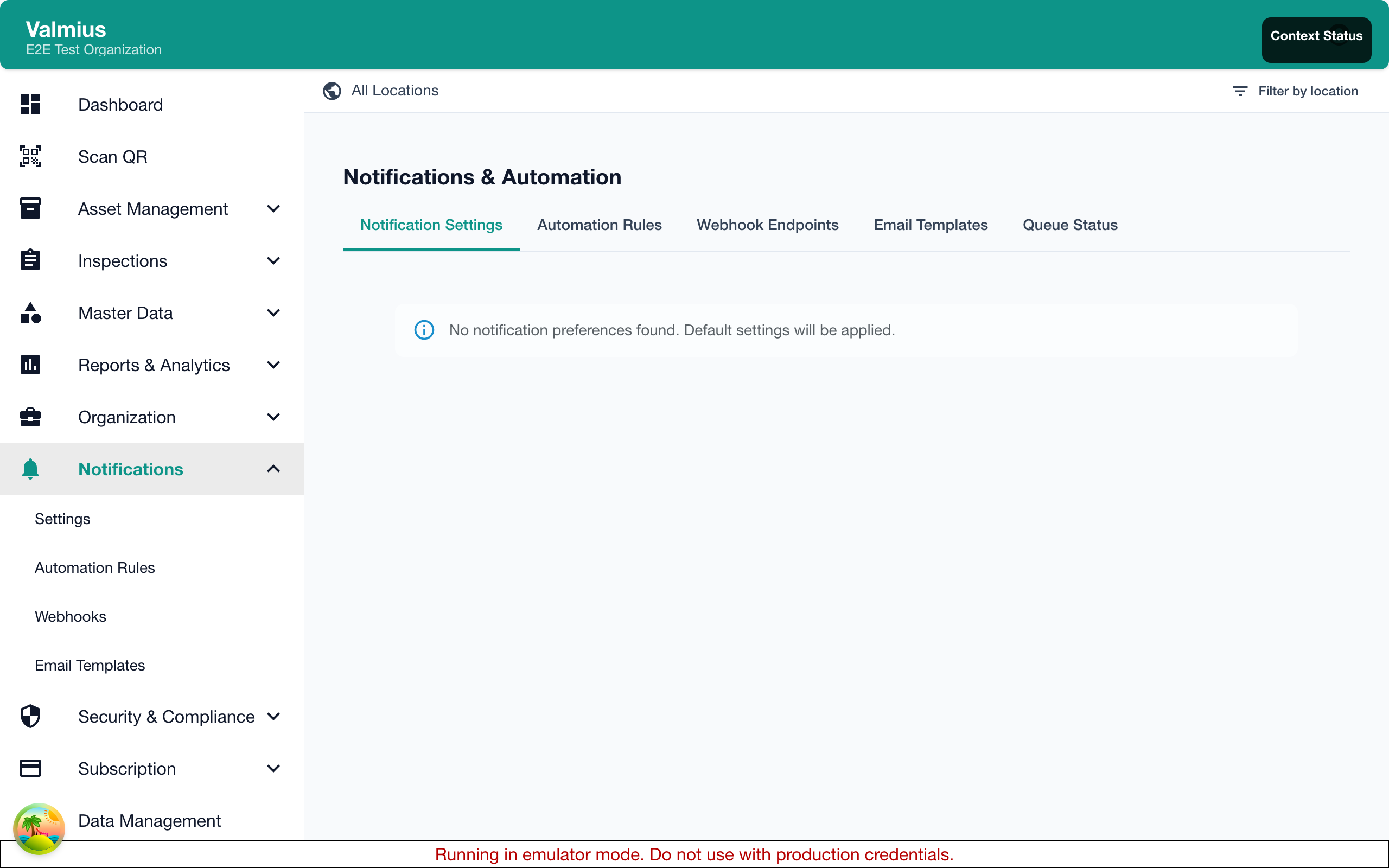
Control what notifications you receive:
Accessing Settings
- Click Settings in the menu
- Find Notification Preferences
In-App Notifications
Toggle notifications for each type:
- Inspection reminders
- Overdue alerts
- Action assignments
- System messages
Email Notifications
Configure email delivery:
| Setting | Options |
|---|---|
| Enable Email | On/Off |
| Frequency | Immediate, Daily digest, Weekly digest |
| Types | Select which types trigger emails |
Quiet Hours
Set times when notifications are muted:
- Start time - Begin quiet period
- End time - End quiet period
- Days - Which days to apply
During quiet hours:
- Notifications still arrive but don't alert
- No push notifications
- Email delays until quiet hours end
Priority Levels
Notifications have priority:
| Priority | Indicator | Behavior |
|---|---|---|
| Critical | 🔴 Red | Always alerts |
| High | 🟠 Orange | Prominent display |
| Medium | 🟡 Yellow | Standard notification |
| Low | ⚪ Gray | Subtle notification |
Critical notifications may bypass quiet hours.
Real-Time Updates
Live Notifications
Notifications appear in real-time:
- While you're using Kuviq
- Badge updates immediately
- No refresh needed
When Offline
- Notifications queue
- Receive when you return online
- Check notification center on reconnect
Mobile Notifications
In-App
Same experience as desktop:
- Full notification center
- All filtering options
- Action buttons
Push Notifications
If enabled (browser/device):
- Appear even when app is closed
- Tap to open Kuviq
- Configure in device settings
Best Practices
Stay Current
- Check notifications regularly
- Address urgent items promptly
- Clear old notifications
Configure Preferences
- Enable important notification types
- Set appropriate email frequency
- Use quiet hours to avoid off-hours alerts
Act on Notifications
- Don't let them pile up
- Use quick actions when available
- Follow through on assignments
Troubleshooting
Not Receiving Notifications
- Check notification settings are enabled
- Verify email address is correct
- Check spam folder for emails
- Ensure browser allows notifications
Too Many Notifications
- Adjust notification preferences
- Disable less important types
- Use digest mode for emails
- Set quiet hours
Delayed Notifications
- Check internet connection
- Real-time requires active connection
- Email may have delivery delays
Next Steps
- Notification Types - Details on each type
- Upcoming Inspections - Related to notifications
- Settings - Configure preferences