Scanning QR Codes
Learn how to use QR codes for quick access to equipment in Kuviq.
Why Use QR Codes?
QR codes provide instant access to item information:
- No typing - Scan instead of searching
- Faster - Instant item lookup
- Accurate - No selection errors
- Mobile-friendly - Use your phone anywhere
- Start inspections - Jump directly to inspection form
Using the Built-in Scanner
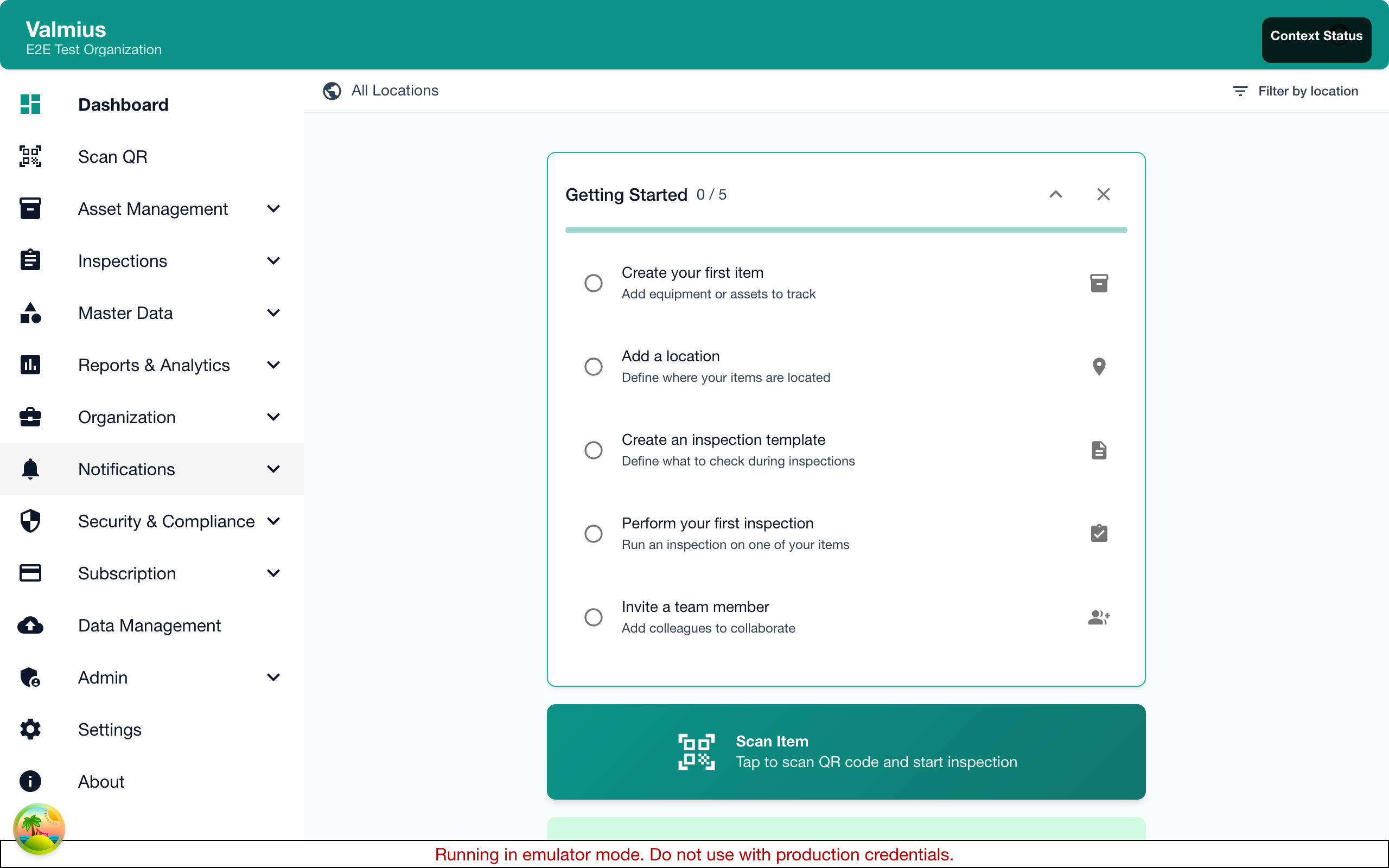
Accessing the Scanner
- Click Scan QR in the navigation menu
- Or tap the QR icon in the bottom navigation (mobile)
First-Time Setup
When first using the scanner:
- Browser requests camera permission
- Click Allow to grant access
- Camera activates for scanning
Permission Required
Camera access is required for QR scanning. If you denied permission, check your browser settings to enable it.
Scanning a Code
- Open the QR scanner
- Point your camera at the QR code
- Keep the code within the frame
- Hold steady until recognized
- Code is detected automatically
After Scanning
When a valid Kuviq QR code is scanned:
Options appear:
- View Details - Open item information
- Inspect - Start an inspection
- History - View inspection history
Click your desired action to proceed.
Scanning Tips
For Best Results
| Tip | Why |
|---|---|
| Good lighting | Camera needs light to read code |
| Steady hand | Movement blurs the image |
| Proper distance | Not too close, not too far |
| Clean code | Dirt obscures the pattern |
| Flat surface | Wrinkles distort reading |
Optimal Distance
- Small codes (12mm) - Hold 3-6 inches away
- Medium codes (25mm) - Hold 6-12 inches away
- Large codes (50mm) - Hold 12-18 inches away
Problem Conditions
Scanning may be difficult with:
- Very low light
- Direct sunlight glare
- Damaged or dirty codes
- Codes on curved surfaces
- Faded or worn labels
Using Your Phone's Camera
You can also scan with your native camera app:
iPhone
- Open Camera app
- Point at QR code
- Tap the notification that appears
- Opens Kuviq in browser
Android
- Open Camera app (or Google Lens)
- Point at QR code
- Tap the link that appears
- Opens Kuviq in browser
Sign-in Required
When using the native camera:
- The link opens in your browser
- You may need to sign in first
- Then you'll see item details
External Scanner Apps
Any QR scanner app works:
- Scan the code
- The app shows a URL
- Open the URL
- Sign in to Kuviq (if needed)
- View item details
Recommended Apps
- iOS: Built-in Camera, QR Reader
- Android: Google Lens, QR & Barcode Scanner
Understanding QR Codes
What's in the Code
Kuviq QR codes contain:
- A unique URL for the item
- Organization identifier
- Item identifier
Code Security
- Codes only work in your organization
- Scanning requires authentication
- No sensitive data in the code itself
Code Permanence
QR codes are permanent:
- Same code always links to same item
- Reprinting produces identical code
- Codes don't expire
Mobile Workflow
Typical Field Process
- Arrive at equipment location
- Scan QR code on equipment
- Verify correct item displayed
- Start inspection
- Complete and submit
- Move to next item
Efficient Scanning
For multiple items:
- Complete one inspection
- Scan next item's QR code
- Start next inspection
- Repeat
Troubleshooting
Code Won't Scan
| Issue | Solution |
|---|---|
| Camera not activating | Check browser permissions |
| Code not recognized | Clean the label, improve lighting |
| Blurry image | Hold camera steady |
| Too close/far | Adjust distance |
Invalid QR Code
If you see "Invalid QR Code":
- May be a non-Kuviq code
- Code might be for different organization
- Item may have been deleted
Permission Denied
If camera permission was denied:
Chrome:
- Click lock icon in address bar
- Find Camera setting
- Change to Allow
- Refresh page
Safari:
- Go to Settings > Safari
- Find Camera access
- Enable for Kuviq
Firefox:
- Click lock icon in address bar
- Clear camera permission
- Refresh and allow when prompted
Slow Recognition
If scanning is slow:
- Improve lighting
- Clean your camera lens
- Try a different angle
- Ensure code is undamaged
Accessibility
Alternative to Scanning
If you can't scan:
- Go to Items
- Search by item name or serial number
- Select the item
Manual Entry
Some items show an ID below the QR code:
- Note the item ID
- Go to Items
- Search for the ID
- Select the item
Next Steps
- Printing QR Codes - Generate labels for your items
- QR Code Customization - Configure code appearance
- Performing Inspections - After scanning