First Login
This guide will help you create your Kuviq account and log in for the first time.
Creating Your Account
Step 1: Navigate to Registration
- Open your web browser and go to the Kuviq application
- Click Sign Up or Create Account
Step 2: Enter Your Details
Fill in the registration form with the following information:
| Field | Requirements |
|---|---|
| Full Name | Minimum 2 characters |
| Email Address | Valid email format |
| Password | Minimum 12 characters (see requirements below) |
| Confirm Password | Must match your password |
Password Requirements
Your password must contain:
- At least 12 characters
- At least one uppercase letter (A-Z)
- At least one lowercase letter (a-z)
- At least one number (0-9)
- At least one special character (!@#$%^&*...)
A password strength indicator will show you how secure your password is as you type. Aim for a "Strong" rating.
Step 3: Complete Registration
- Review your information
- Click Sign Up or Create Account
- You'll be automatically signed in and redirected to the setup wizard
Signing In
If you already have an account:
- Navigate to the Kuviq application
- Enter your Email Address
- Enter your Password
- Click Sign In
For security, login attempts are rate-limited. After several failed attempts, you'll need to wait before trying again. The remaining time will be displayed on screen.
Forgot Your Password?
If you've forgotten your password:
- Click Forgot Password? on the login page
- Enter your email address
- Click Send Reset Link
- Check your email inbox for a password reset link
- Follow the link to create a new password
The reset email is sent immediately. Check your spam/junk folder if you don't see it within a few minutes.
After Your First Login
When you first sign in to a new account, you'll be guided through the Onboarding Wizard to set up your organization.
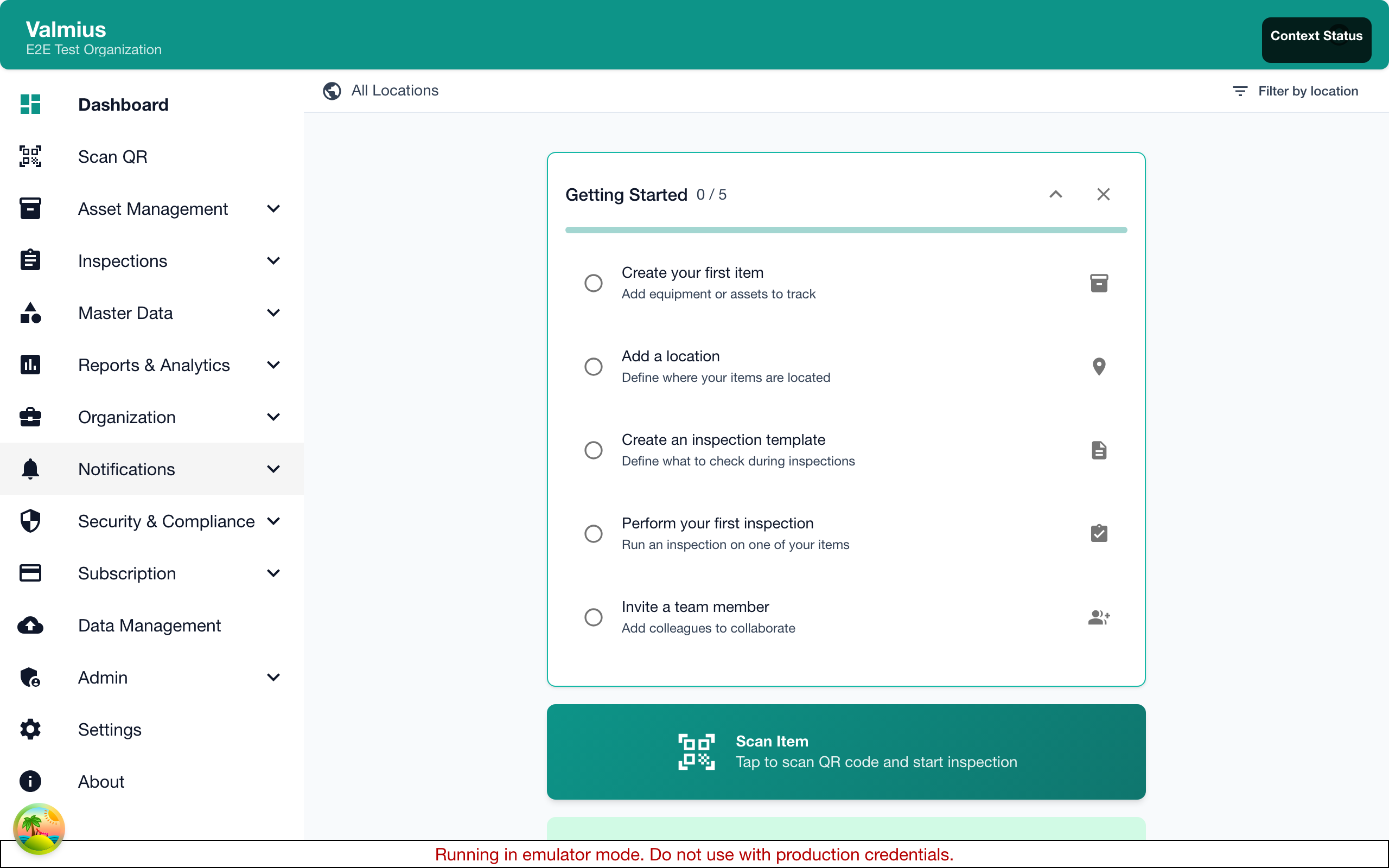
This includes:
- Organization Setup - Your organization is automatically created
- Template Selection - Choose inspection templates for your industry
- Locations - Review auto-created locations
- Items - Review sample items
The wizard creates sample data to help you get started quickly:
- 3 Item Types (General Equipment, Safety Equipment, Tools)
- 3 Default Locations (Main Building, Warehouse, Office Area)
- 5 Manufacturers with sample data
- 5 Sample Items distributed across locations
- 3 Inspection Schedules (monthly, quarterly, weekly)
You can delete the sample data later if you prefer to start fresh. The samples are provided to help you understand how Kuviq works.
User Roles
When you create an account, you're assigned the Admin role for your organization. This gives you full access to:
- Manage users and permissions
- Configure organization settings
- Create and edit inspection templates
- Access all items and inspections
- View reports and analytics
- Manage subscription and billing
Other role levels include:
| Role | Access Level |
|---|---|
| Super Admin | Full system access (platform administrators only) |
| Admin | Full organizational access |
| Manager | Can manage inspections, teams, and reports |
| User | Can perform inspections on assigned items/locations |
Joining an Existing Organization
If someone has invited you to their organization:
- Check your email for an invitation from Kuviq
- Click the invitation link in the email
- Create your account (or sign in if you already have one)
- You'll be automatically added to the organization with the assigned role
Your access will be determined by:
- The role assigned by the administrator
- The locations you're assigned to (if location-based access is configured)
Troubleshooting
Can't Create Account
- Ensure your email isn't already registered
- Check that your password meets all requirements
- Try a different browser if the form isn't working
Can't Sign In
- Verify your email address is correct
- Use the "Forgot Password" feature to reset your password
- Check if you're rate-limited after failed attempts
- Contact your organization admin if your account may be deactivated
Didn't Receive Invitation Email
- Check your spam/junk folder
- Ask the administrator to resend the invitation
- Verify the email address used for the invitation
Next Steps
After logging in:
- Quick Tour - Learn your way around the dashboard
- Basic Setup - Configure your organization settings