Quick Tour
This guide introduces you to the Kuviq interface and helps you navigate the key features.
Dashboard Overview
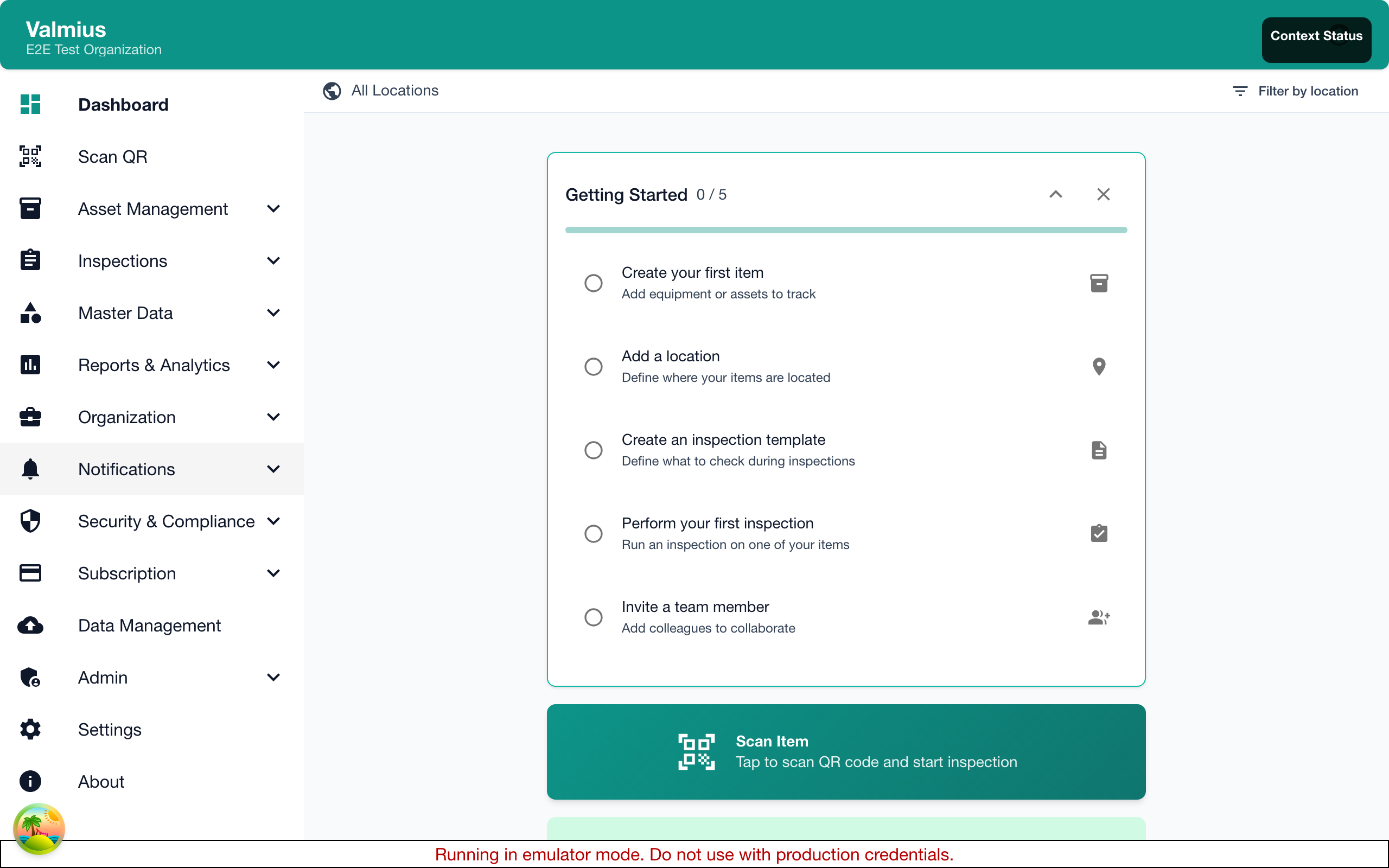
After logging in, you'll land on the Dashboard - your central hub for managing inspections.
Dashboard Components
The dashboard displays:
- Scan Button - Quick access to the QR code scanner
- Status Summary Cards - At-a-glance view of your inspection status:
- Overdue (red) - Inspections past their due date that need immediate attention
- Due Today (yellow) - Inspections scheduled for today
- Due This Week (green) - Upcoming inspections in the next 7 days
- When all inspections are up to date, you'll see an "All inspections up to date" message
- Quick Actions - Common tasks like creating items or scheduling inspections
- Next Inspections List - Upcoming inspections that need your attention
On mobile devices, the dashboard adapts to a single-column layout for easier navigation.
Main Navigation
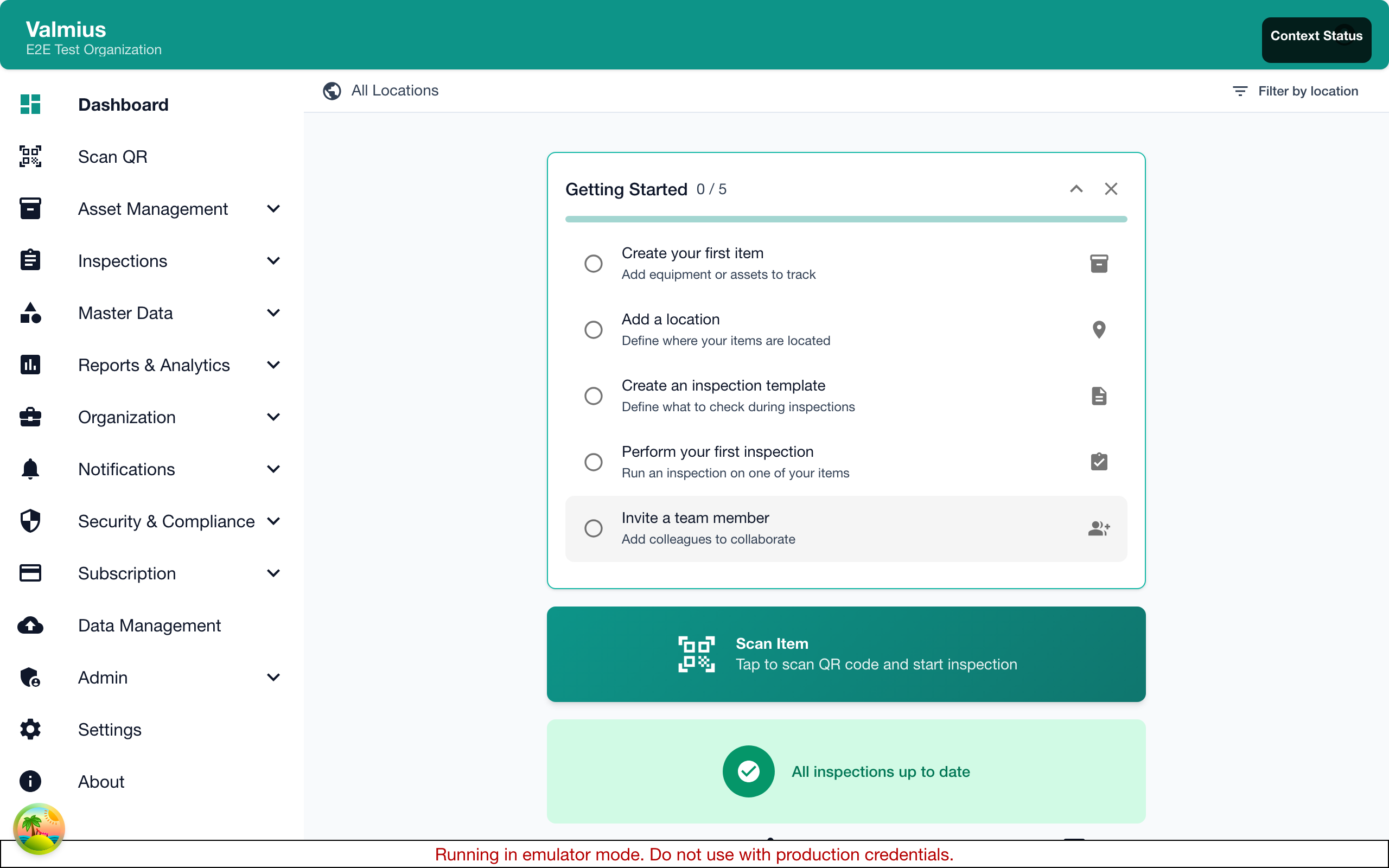
The navigation menu provides access to all Kuviq features. On desktop, it's a sidebar on the left. On mobile, use the hamburger menu or bottom navigation bar.
Primary Navigation
| Menu Item | Description |
|---|---|
| Dashboard | Home page with actionable inspections |
| Scan QR | Quick access to the QR code scanner |
Items Section
| Menu Item | Description |
|---|---|
| Items | View and manage all equipment |
| Item Types | Categorize your equipment |
| Item Groups | Organize items into groups |
| QR Codes | Bulk print QR code labels |
Inspections Section
| Menu Item | Description |
|---|---|
| Inspections | View all inspection records |
| Templates | Create and manage inspection forms |
| Schedules | Set up automated inspection schedules |
| Offline | View pending offline inspections |
Organization Section
| Menu Item | Description |
|---|---|
| Locations | Manage your location hierarchy |
| Manufacturers | Track equipment manufacturers |
| Users | Manage team members and permissions |
| Settings | Organization configuration |
Reports & Analytics
| Menu Item | Description |
|---|---|
| Reports | View and create custom reports |
| Analytics | Dashboard with metrics and trends |
Subscription
| Menu Item | Description |
|---|---|
| Management | View and change subscription plan |
| Billing | Payment methods and invoices |
| Usage | Track usage against plan limits |
Admin Section
The Admin section is only visible to users with Admin or Super Admin roles.
| Menu Item | Description |
|---|---|
| Dashboard | Administrative overview |
| Organization | Organization-level settings |
| Trial Management | Manage trial periods (Super Admin) |
Quick Actions
Scanning QR Codes
The Scan QR button in the navigation provides instant access to the QR scanner:
- Click Scan QR in the menu
- Allow camera access when prompted
- Point your camera at an item's QR code
- View item details or start an inspection
Creating Items
To quickly add new equipment:
- Navigate to Items
- Click the + Add button
- Fill in item details
- Save
Starting an Inspection
To inspect an item:
- Find the item (search, browse, or scan QR)
- Click Inspect on the item
- Complete the inspection form
- Submit
User Profile
Access your profile settings from the user menu in the top-right corner:
- Profile - View and edit your profile information
- Language - Switch between English, Finnish, and Swedish
- Logout - Sign out of Kuviq
Your language preference is saved to your profile and persists across sessions.
Notifications
The Notifications menu item shows alerts for:
- Upcoming inspections
- Overdue inspections
- Failed inspections requiring action
- System messages
A badge indicates unread notifications.
Keyboard Navigation
Kuviq supports standard keyboard navigation:
- Tab - Move between interactive elements
- Enter - Activate buttons and links
- Escape - Close dialogs and modals
Mobile Features
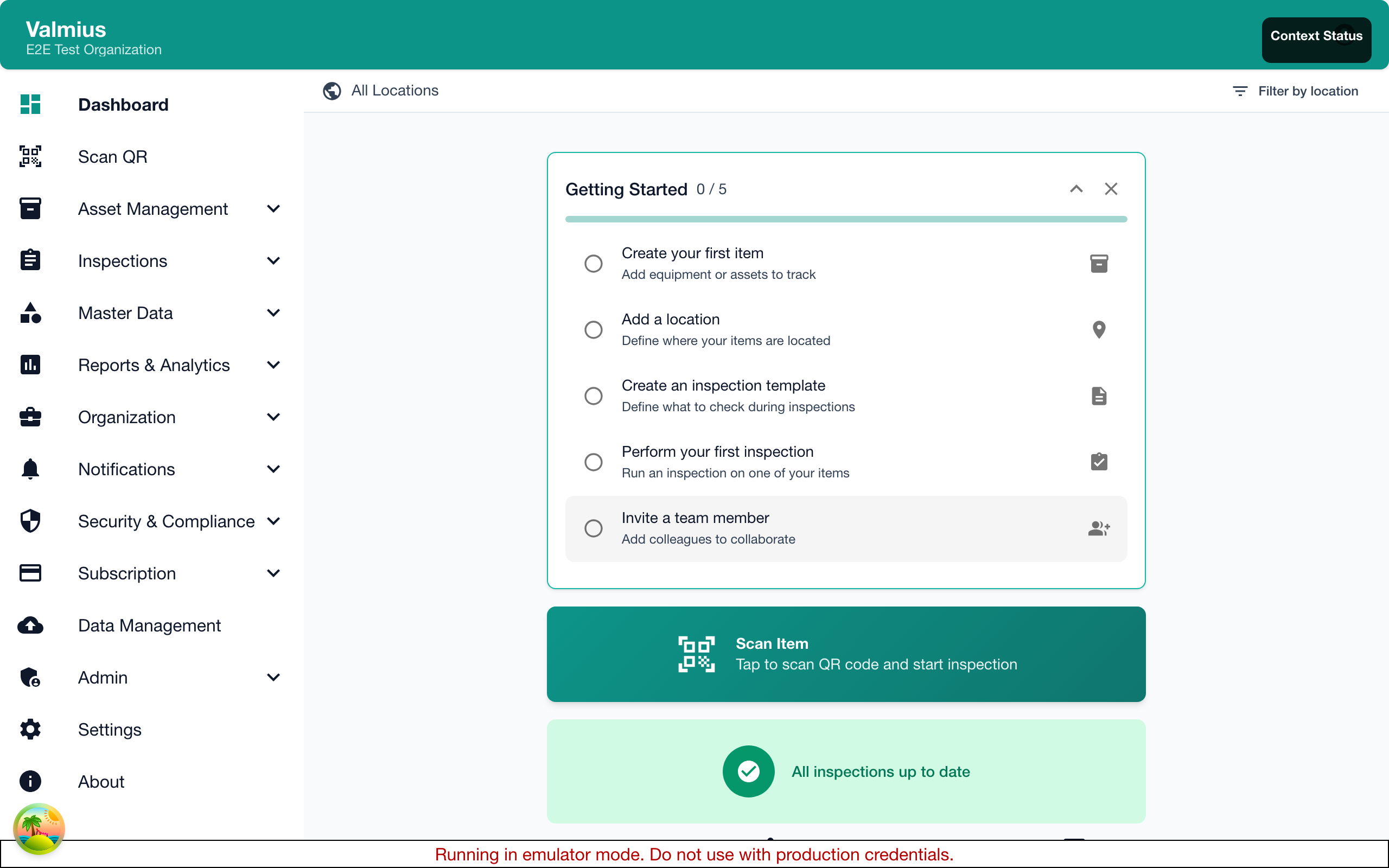
On mobile devices, you'll find:
- Install as App - Add Kuviq to your home screen for an app-like experience
- Push Notifications - Receive alerts for overdue inspections and reminders
- Bottom Navigation Bar - Quick access to Dashboard and Scan QR
- Swipe Gestures - Navigate between sections
- Touch-Optimized - Large tap targets (44px minimum) for easy interaction
- Camera Integration - Native camera access for QR scanning and photos
- Offline Mode - Continue inspections without internet, sync when back online
- Haptic Feedback - Tactile confirmation for key actions (on supported devices)
Understanding Status Indicators
Throughout Kuviq, you'll see status indicators:
Item Status
| Status | Meaning |
|---|---|
| Available | Item is ready for use |
| In Use | Item is currently being used |
| Needs Attention | Item requires inspection or maintenance |
| Under Maintenance | Item is being serviced |
| Retired | Item is no longer in service |
Inspection Status
| Status | Meaning |
|---|---|
| Upcoming | Inspection scheduled for the future |
| Due Soon | Inspection due within the warning period |
| Overdue | Inspection past its due date |
| In Progress | Inspection started but not completed |
| Completed | Inspection finished |
| Passed | Inspection completed with passing result |
| Failed | Inspection completed with failing result |
Getting Help
If you need assistance while using Kuviq:
- Check this documentation for detailed guides
- Look for help icons (?) next to features for quick tips
- Contact support at support@kuviq.io
Next Steps
Now that you're familiar with the interface:
- Basic Setup - Configure your organization
- Creating Items - Add your equipment
- Performing Inspections - Start inspecting