Inspection Templates
Learn how to create inspection forms for your equipment.
Overview
Inspection templates define what gets checked during an inspection:
- Questions and checkpoints
- Pass/fail criteria
- Required documentation
- Inspection intervals
A well-designed template ensures consistent, thorough inspections.
Accessing Templates
- Navigate to Admin > Inspection Templates
- View all available templates
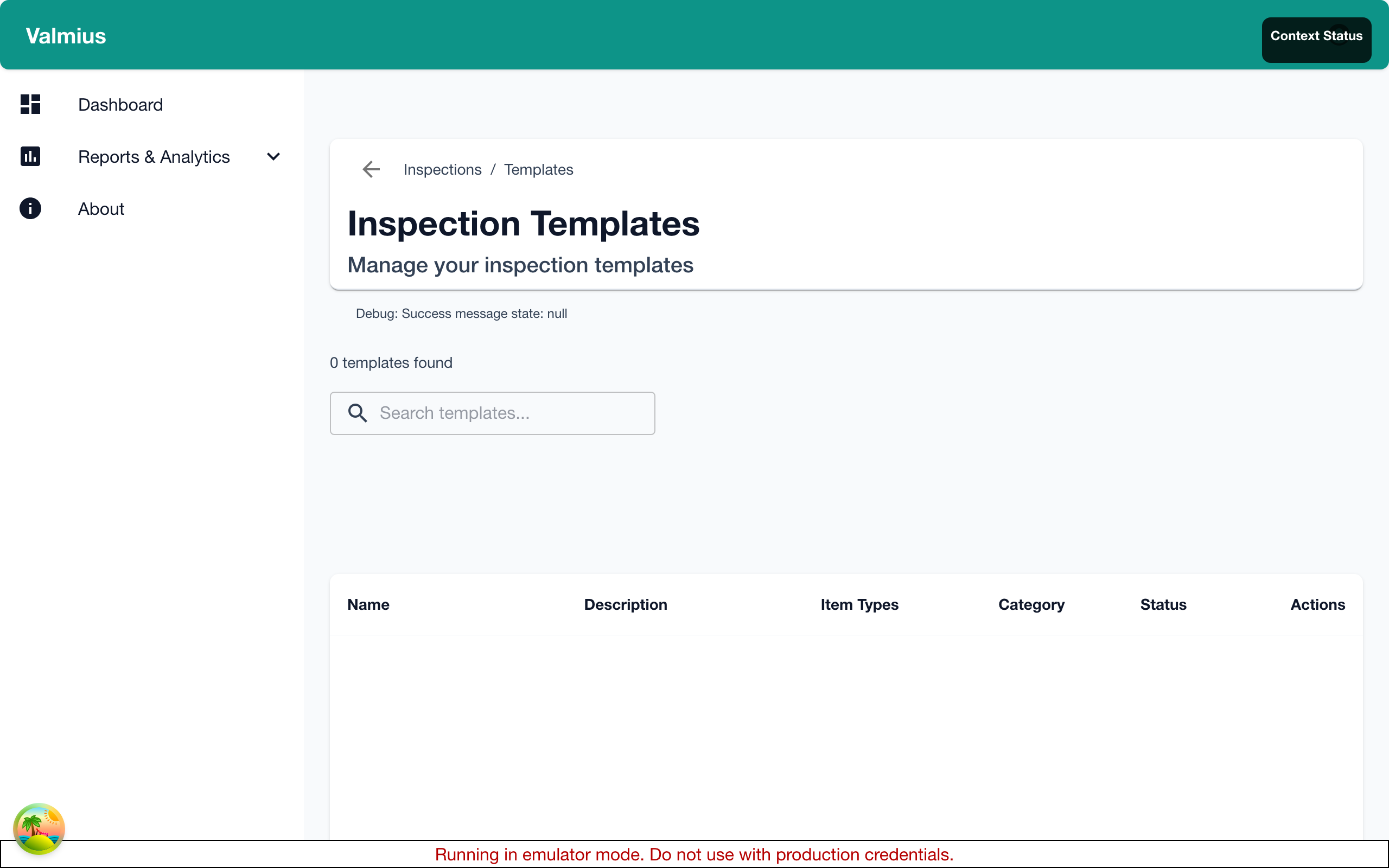
The Template List
The list shows:
| Column | Description |
|---|---|
| Name | Template name |
| Items Using | Number of item types using this template |
| Elements | Number of inspection elements |
| Default Interval | How often inspections are required |
| Status | Active or Draft |
Creating a Template
Basic Setup
- Click Add Template
- Enter the template name (e.g., "Fire Extinguisher Monthly Check")
- Add a description
- Set as Draft to work on it, or Active to use immediately
- Save
Template Naming
| Good Names | Why |
|---|---|
| Fire Extinguisher - Monthly | Clear purpose and frequency |
| Ladder Pre-Use Inspection | When it's used |
| Vehicle Daily Checklist | Specific and clear |
Inspection Elements
Elements are the individual items to check during an inspection.
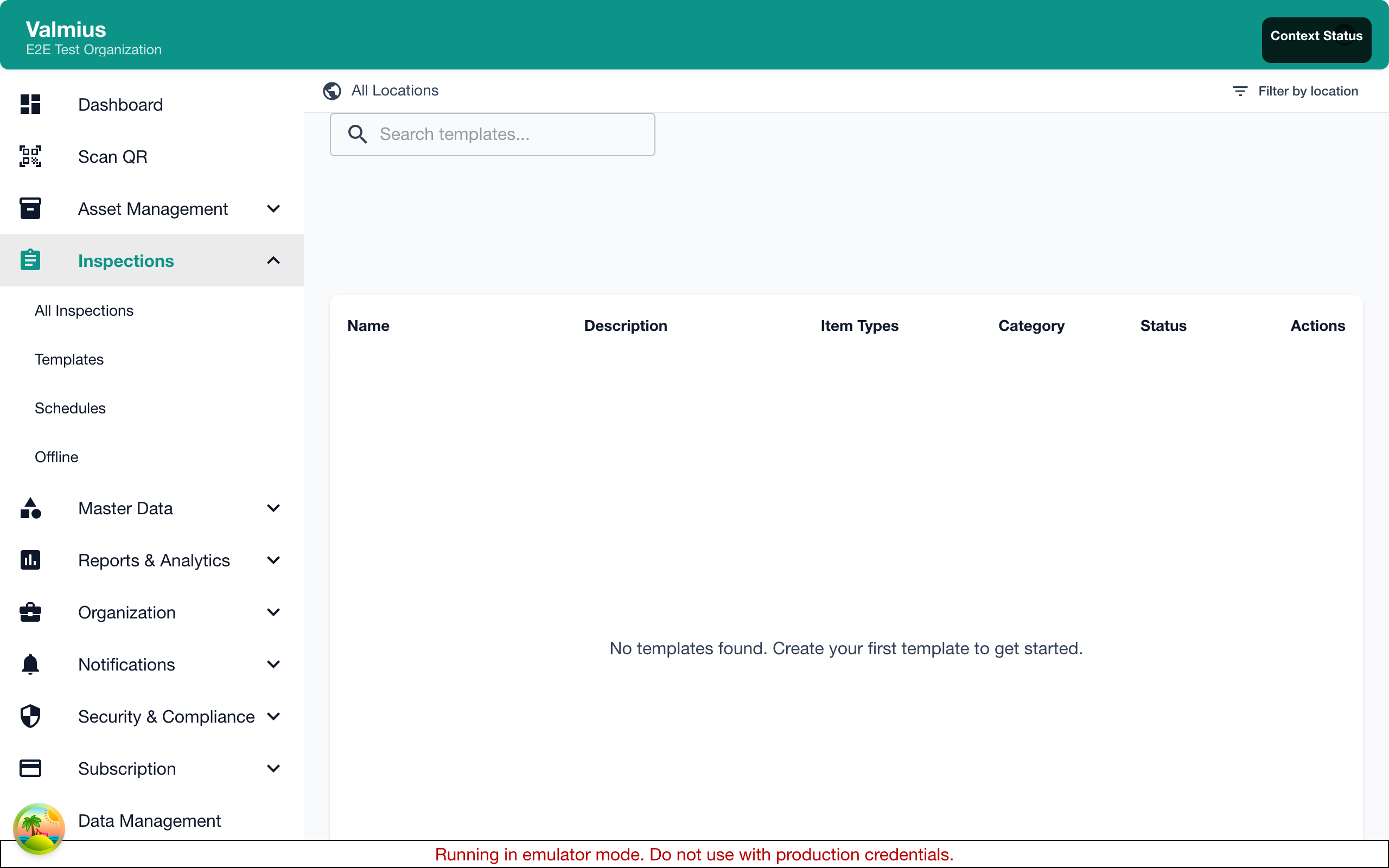
Adding Elements
- Edit the template
- Click Add Element
- Configure the element (see types below)
- Save
Element Types
Pass/Fail
Simple yes/no or pass/fail checkbox.
Use for:
- Safety checks ("Guard is in place")
- Condition checks ("No visible damage")
- Compliance items ("Tag is attached")
Configuration:
- Label (the question/statement)
- Fail value (what triggers a failure)
- Required (must be answered)
Example:
Label: "Safety pin is intact"
Fail condition: "No" or "Fail"
Required: Yes
Text
Free-form text entry.
Use for:
- Observations ("Describe any damage")
- Notes ("Additional comments")
- Serial numbers to verify
Configuration:
- Label
- Placeholder text
- Required
- Minimum/maximum length
Number
Numeric input with optional range validation.
Use for:
- Measurements ("Tire pressure (PSI)")
- Readings ("Temperature")
- Counts ("Number of items")
Configuration:
- Label
- Unit (PSI, kg, etc.)
- Minimum value
- Maximum value
- Fail if outside range
Example:
Label: "Pressure reading"
Unit: "PSI"
Minimum: 100
Maximum: 200
Fail if: Below 100 or above 200
Multiple Choice
Select from predefined options.
Use for:
- Condition ratings ("Good / Fair / Poor")
- Categories ("Action: None / Repair / Replace")
- Statuses
Configuration:
- Label
- Options (list)
- Allow multiple selections
- Fail values (which options trigger failure)
Photo
Image capture or upload.
Use for:
- Documentation ("Photo of equipment")
- Evidence ("Photo of any defects")
- Before/after comparison
Configuration:
- Label
- Required
- Minimum photos
- Maximum photos
Date
Date selection.
Use for:
- Expiry verification ("Calibration expiry date")
- Last service dates
- Next action dates
Configuration:
- Label
- Required
- Fail if past date (for expiry dates)
Signature
Digital signature capture.
Use for:
- Inspector acknowledgment
- Supervisor approval
- Compliance sign-off
Configuration:
- Label
- Required
- Who must sign (Inspector, Supervisor)
Section Header
Organize elements into logical groups.
Use for:
- Separating inspection areas
- Grouping related checks
- Improving readability
Element Order
Elements appear in the order you define:
- Drag elements to reorder
- Use section headers to group
- Put critical items first
- Logical flow (top to bottom, front to back)
Required Elements
Mark elements as required when:
- The check is critical for safety
- Data is needed for compliance
- The inspection is incomplete without it
Don't make everything required—it can slow inspectors down.
Pass/Fail Conditions
How Failures Work
An inspection fails when any element meets its fail condition:
- Pass/fail element marked as "Fail"
- Number outside acceptable range
- Multiple choice with fail option selected
- Date past expiry (if configured)
Fail Actions
When an inspection fails:
- Inspection is marked as failed
- Notifications sent (if configured)
- Item status may change (if configured)
- Corrective action workflow may start
Configuring Fail Conditions
For each element, specify what triggers failure:
| Element Type | Fail Condition Options |
|---|---|
| Pass/Fail | "No" or "Fail" selected |
| Number | Below minimum, above maximum |
| Multiple Choice | Specific options selected |
| Date | Past date selected |
Template Settings
Inspection Interval
Set how often inspections are required:
| Interval | Use Case |
|---|---|
| Daily | Pre-use checks, high-risk equipment |
| Weekly | Regular equipment checks |
| Monthly | Standard maintenance items |
| Quarterly | Seasonal equipment |
| Annually | Annual certifications |
| Custom | Specific requirements |
Warning Period
How many days before due to show warnings:
- 7 days - Standard
- 14 days - Advance planning needed
- 30 days - Long lead time items
Grace Period
How many days after due before marking overdue:
- 0 days - Strict compliance
- 3 days - Some flexibility
- 7 days - More flexibility
Notifications
Configure alerts for this template:
| Notification | Description |
|---|---|
| Due Soon | When inspection enters warning period |
| Due Today | Day of scheduled inspection |
| Overdue | After due date passes |
| Failed | When inspection fails |
Linking to Item Types
Default Template
Associate a template with an item type:
- Go to Admin > Item Types
- Edit the item type
- Select this template as the default
- Save
Multiple Templates per Type
An item type can use multiple templates:
- Different inspection frequencies
- Different inspection depths
- Different regulatory requirements
The default is pre-selected; inspectors can choose others.
Versioning
Template Changes
When you modify a template:
- Past inspections keep their original structure
- Future inspections use the new template
- Changes are tracked in history
Major vs Minor Changes
Minor changes (safe anytime):
- Fixing typos
- Adding help text
- Reordering elements
Major changes (consider carefully):
- Adding required elements
- Changing fail conditions
- Removing elements
Creating a New Version
For major changes, consider:
- Create a new template (v2)
- Test with a few items
- Update item types to use the new template
- Archive the old template
Example Templates
Fire Extinguisher Monthly
Section: Visual Inspection
- [ ] Mounted in designated location (Pass/Fail)
- [ ] No visible damage or rust (Pass/Fail)
- [ ] Pressure gauge in green zone (Pass/Fail)
- [ ] Safety pin and tamper seal intact (Pass/Fail)

Section: Tag and Certification
- [ ] Inspection tag attached (Pass/Fail)
- Service date: [Date picker]
- Expiry date: [Date picker, fail if past]

Section: Documentation
- Photo of extinguisher: [Photo]
- Photo of tag: [Photo]
- Notes: [Text]

Section: Sign-off
- Inspector signature: [Signature]
Pre-Use Ladder Inspection
Section: General Condition
- [ ] No visible damage to rails (Pass/Fail)
- [ ] All rungs secure and undamaged (Pass/Fail)
- [ ] No cracks or splits (Pass/Fail)
- [ ] All hardware tight (Pass/Fail)

Section: Safety Features
- [ ] Non-slip feet present and in good condition (Pass/Fail)
- [ ] Locking mechanisms work (Pass/Fail)
- [ ] Warning labels legible (Pass/Fail)

Section: Assessment
- Overall condition: [Dropdown: Good/Fair/Poor]
- Notes: [Text]
Best Practices
Design Principles
- Clear language - Anyone should understand
- Logical order - Follow natural inspection flow
- Appropriate depth - Match risk level
- Photo evidence - When documentation matters
What to Include
| Always Include | Consider Including |
|---|---|
| Safety-critical checks | Photo documentation |
| Regulatory requirements | Measurements |
| Pass/fail criteria | Notes fields |
| Inspector sign-off | Supervisor sign-off |
What to Avoid
- Too many elements - Inspections take too long
- Vague questions - Results are inconsistent
- Everything required - Slows inspectors down
- No fail conditions - Failures not captured
Troubleshooting
Template Not Available
- Check template status is "Active"
- Verify item type association
- Check user has permission to use template
Inspections Not Scheduling
- Verify interval is set
- Check item is assigned this template
- Ensure scheduling is enabled
Pass/Fail Not Working
- Verify fail conditions are configured
- Check element is required
- Test with expected fail values
Importing/Exporting
Export Template
- Click on template
- Click Export
- Download as JSON or PDF
Import Template
- Click Import
- Upload template file
- Review and adjust
- Save
Useful for sharing templates across organizations.
Next Steps
- Inspection Scheduling - Set up schedules
- Item Types - Link templates to types
- Performing Inspections - Use templates