Billing
Manage your Kuviq subscription billing and payments.
Overview
The billing section allows Super Admins to:
- View and manage payment methods
- Download invoices
- Update billing information
- Monitor subscription status
- Handle payment issues
Accessing Billing
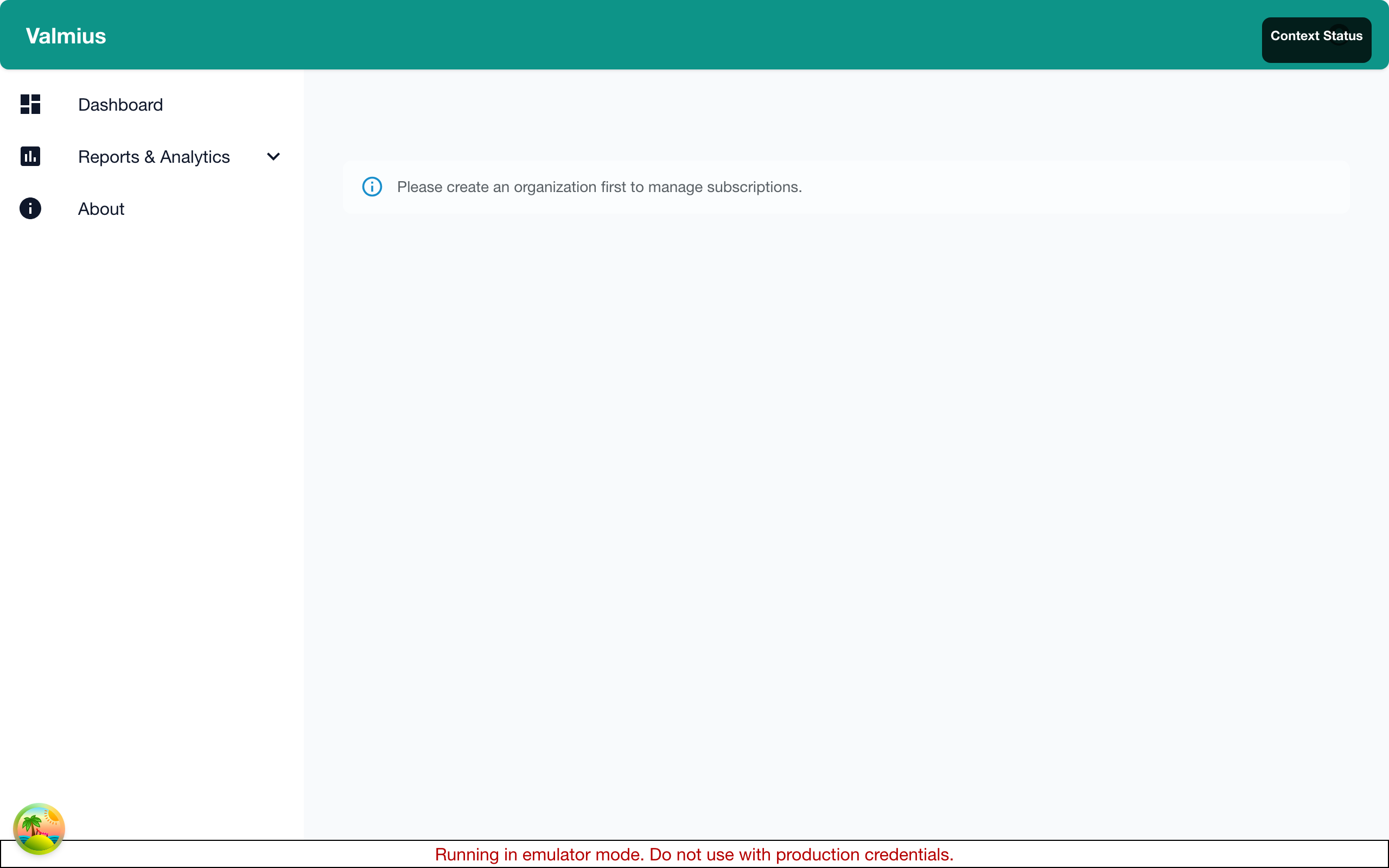
- Navigate to Admin > Subscription or Admin > Billing
- Click on Billing tab
Only Super Admins can access billing information and make changes.
Payment Methods
Accepted Payment Types
Kuviq accepts:
| Type | Cards Accepted |
|---|---|
| Credit Cards | Visa, MasterCard, American Express, Discover |
| Debit Cards | With Visa/MasterCard logo |
| Enterprise | Invoicing available |
Adding a Payment Method
- Go to Admin > Billing
- Click Add Payment Method
- Enter card details:
- Card number
- Expiration date
- CVV/CVC
- Billing name
- Billing address
- Click Save
Updating Payment Method
- Go to Admin > Billing
- Click Update Payment Method
- Enter new card details
- Click Save
The new card becomes your default payment method.
Multiple Payment Methods
You can store multiple cards:
- Add additional payment methods
- Set one as default
- Others serve as backup
Removing a Payment Method
- Go to Admin > Billing
- Find the card to remove
- Click Remove
- Confirm
You cannot remove your primary payment method while subscribed. Add a new card first.
Invoices
Viewing Invoices
- Go to Admin > Billing
- Click Invoice History
- View all past invoices
Invoice list shows:
| Column | Description |
|---|---|
| Invoice # | Unique invoice number |
| Date | Invoice date |
| Amount | Total charged |
| Status | Paid, Pending, Failed |
Downloading Invoices
- Find the invoice
- Click Download PDF
- Save to your computer
Invoice Details
Each invoice includes:
- Invoice number and date
- Your organization details
- Billing period
- Plan and pricing
- Taxes (if applicable)
- Payment method used
- Transaction reference
Bulk Invoice Download
For accounting purposes:
- Go to Invoice History
- Select date range
- Click Download All
- Receive a ZIP file with all invoices
Billing Information
Company Details
Update your billing information:
- Go to Admin > Billing
- Click Billing Details
- Update:
- Company name
- Billing address
- Tax ID (if applicable)
- Contact email
- Save
Tax Information
For proper tax calculation:
- Update your billing address
- Add tax ID if VAT/GST exempt
- Tax invoices generated automatically
Billing Contact
Set who receives billing communications:
- Go to Billing Details
- Enter billing contact email
- This person receives:
- Payment receipts
- Failed payment notices
- Renewal reminders
Billing Cycle
How Billing Works
| Billing Type | When Charged | Savings |
|---|---|---|
| Monthly | Same date each month | - |
| Annual | Anniversary of signup | 15% discount |
Choosing Your Billing Cycle
You can select your billing cycle when subscribing or change it anytime:
- Go to Admin > Subscription
- Find your current plan card
- Use the Billing Cycle toggle:
- Monthly: Pay month-to-month, maximum flexibility
- Annual: Pay once per year, save 15%
Billing Date
Your billing date is set when you subscribe:
- Monthly: Charged on the same day each month
- Annual: Charged on the same date each year (anniversary of signup)
- If day doesn't exist (e.g., Feb 31st), charged on the last day of the month
Changing Your Billing Cycle
You can switch between monthly and annual billing:
- Go to Admin > Subscription
- Find the Billing Cycle selector on your current plan
- Toggle between Monthly and Annual
- Review the pricing change and savings
- Confirm the change
When switching cycles:
- Changes take effect immediately
- You'll see a prorated charge or credit for the remaining time in your current period
- The new billing cycle applies to all future charges
Proration
Proration ensures you only pay for what you use:
When upgrading mid-cycle:
- Credit for remaining days on old plan
- Charge for remaining days on new plan
- Net difference charged/credited
When changing billing cycles:
- Monthly → Annual: Prorated charge for remaining monthly period, then annual billing starts
- Annual → Monthly: Prorated credit for remaining annual period, then monthly billing starts
Billing Period
View your current billing period:
- Go to Admin > Subscription
- See "Current Period" dates
- Shows when next charge occurs
- Displays your current billing cycle (Monthly or Annual)
Subscription Management
Viewing Current Subscription
- Go to Admin > Subscription
- See:
- Current plan
- Billing cycle
- Next billing date
- Payment method
Changing Plans
See Plans for details on:
- Upgrading
- Downgrading
- Changing billing cycle
Pausing Subscription
Contact support to pause your subscription:
- Data preserved
- No charges during pause
- Resume when ready
Canceling Subscription
- Go to Admin > Subscription
- Click Cancel Subscription
- Select reason (optional)
- Confirm cancellation
After cancellation:
| What Happens | When |
|---|---|
| Access continues | Until end of billing period |
| Data preserved | 30 days after expiry |
| Can reactivate | Anytime within 30 days |
| Data deleted | After 30 days |
Reactivating After Cancellation
- Go to Admin > Subscription
- Click Reactivate
- Choose plan
- Add payment method
- Confirm
Payment Issues
Failed Payments
If a payment fails:
- Email notification sent
- 3-day grace period
- Retry attempted automatically
- Access suspended if not resolved
Resolving Failed Payments
- Go to Admin > Billing
- See failed payment notice
- Update payment method
- Click Retry Payment
Payment Declined
Common reasons:
| Reason | Solution |
|---|---|
| Insufficient funds | Use different card |
| Card expired | Update card details |
| Incorrect details | Verify card info |
| Bank block | Contact your bank |
Past Due Accounts
If your account is past due:
- Update payment method
- Pay outstanding balance
- Access restored immediately
Refunds
Refund Policy
- Request within 30 days of charge
- Annual plans: prorated refund
- Monthly plans: no partial refunds
- Contact support for requests
Requesting a Refund
- Email billing@kuviq.io
- Include:
- Organization name
- Invoice number
- Reason for refund
- Response within 2 business days
Refund Timeline
- Credit card refunds: 5-10 business days
- Appears as credit on your statement
Enterprise Billing
Invoicing
Enterprise customers can pay by invoice:
- Net 30 payment terms
- Bank transfer or check
- Contact for setup
Purchase Orders
If you require purchase orders:
- Contact your account manager
- Provide PO number
- PO referenced on invoices
Custom Billing
Enterprise options include:
- Custom billing cycles
- Consolidated invoicing
- Multiple cost centers
- Custom payment terms
Security
Payment Security
Your payment information is:
- Processed by Stripe (PCI compliant)
- Never stored on Kuviq servers
- Encrypted in transit and at rest
Access Control
Only Super Admins can:
- View payment methods
- Change billing information
- Access invoices
- Manage subscription
Troubleshooting
Invoice Not Received
- Check spam folder
- Verify billing email address
- Download from Invoice History
Charged Incorrect Amount
- Review invoice details
- Check for proration
- Contact support if discrepancy
Can't Update Payment Method
- Try a different browser
- Clear cache and cookies
- Contact support
Support
Billing Questions
For billing inquiries:
- Email: billing@kuviq.io
- Include organization name
- Include relevant invoice numbers
Response Time
- Standard: 1-2 business days
- Urgent (payment issues): Same day