Inspection History
Learn how to view and manage inspection records in Kuviq.
Accessing Inspection History
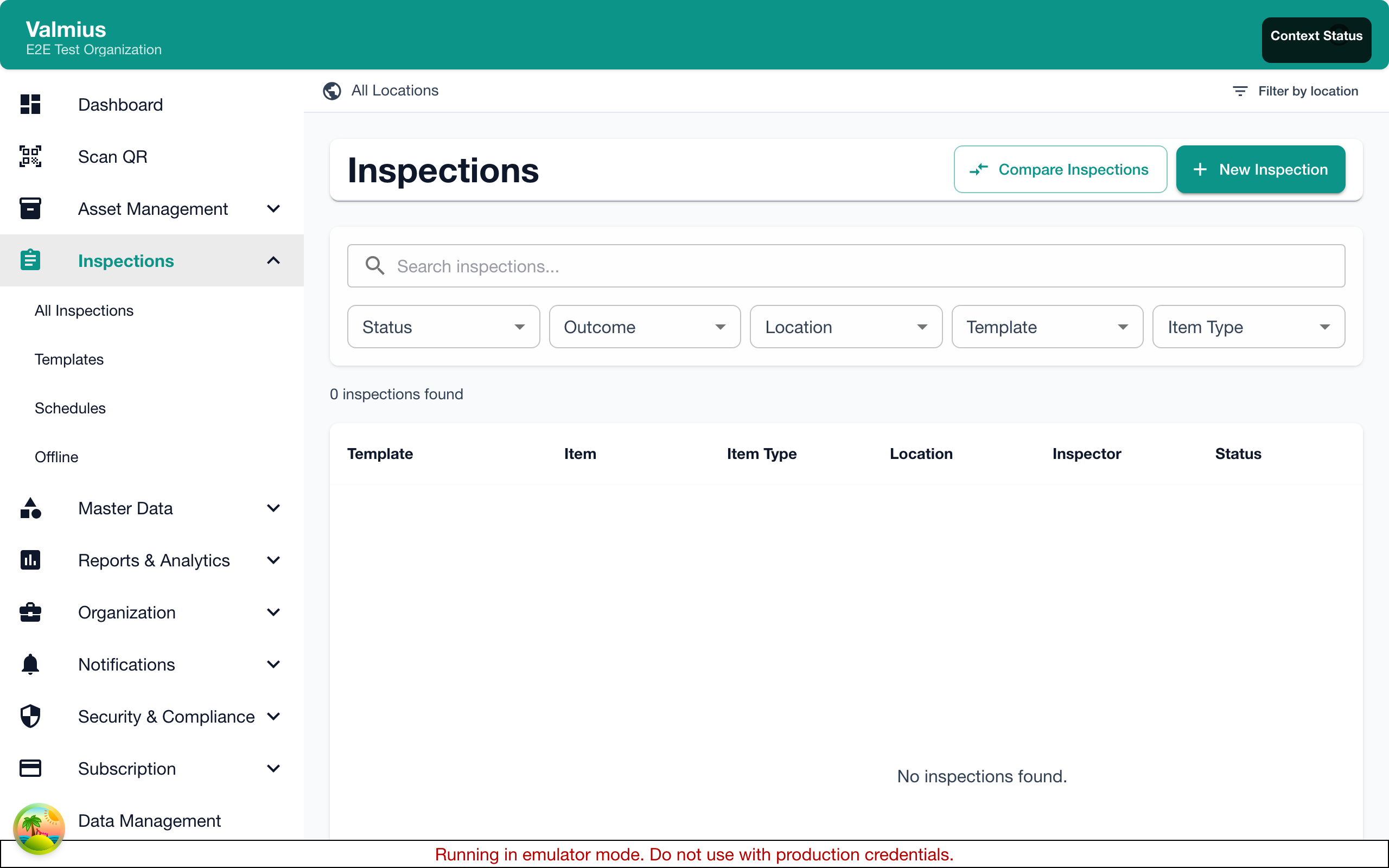
All Inspections
View all inspections across your organization:
- Click Inspections in the main navigation
- Browse the complete inspection list
Item-Specific History
View inspections for a single item:
- Open the item's details page
- Scroll to the Inspection History section
- View all inspections for that item
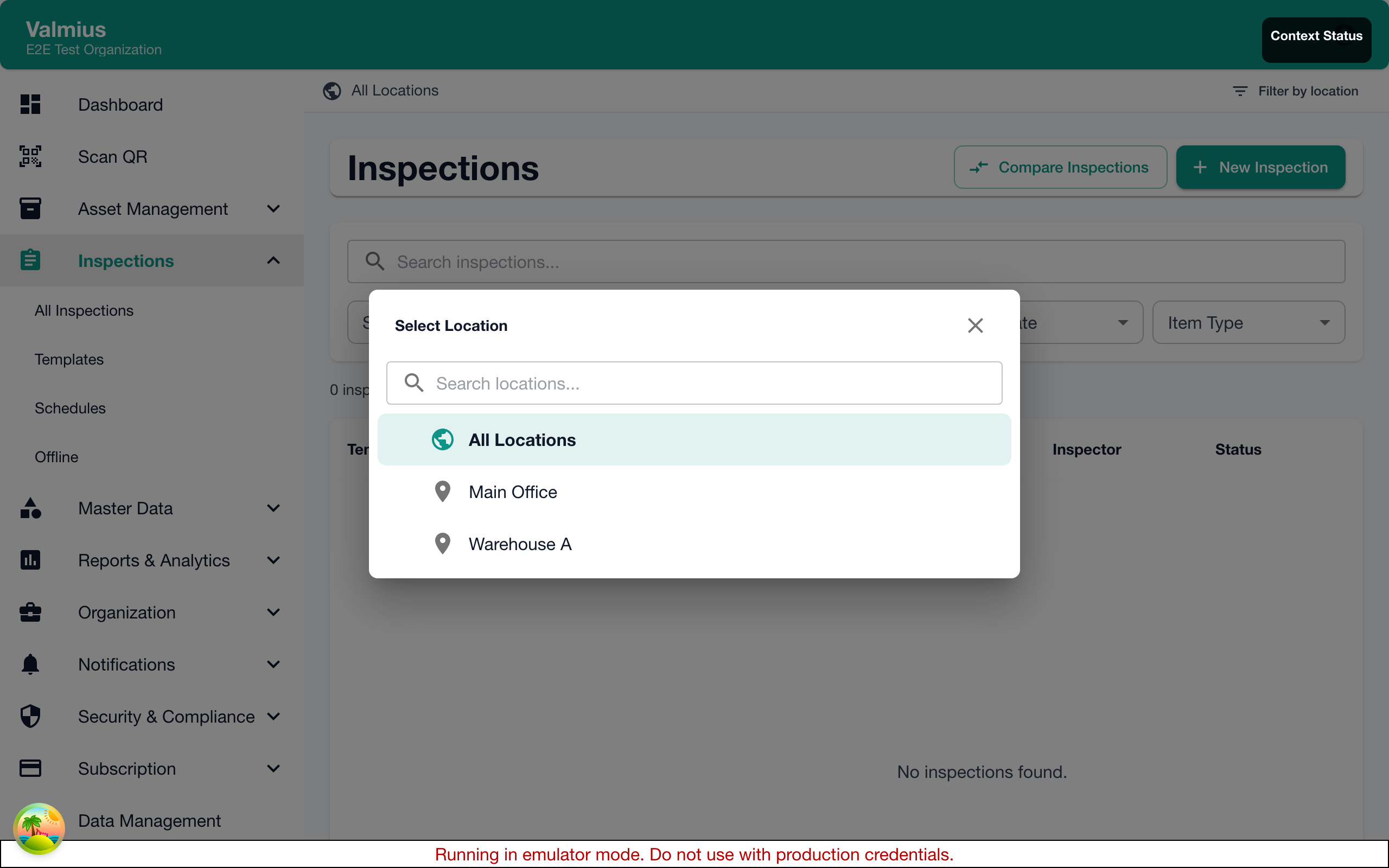
Location-Based History
Filter inspections by location:
- Go to Inspections
- Use the Location filter
- View inspections at selected location(s)
Understanding the Inspections List
Each inspection row displays:
| Column | Description |
|---|---|
| Item | Equipment inspected |
| Template | Inspection form used |
| Date | When performed |
| Inspector | Who conducted it |
| Result | Pass or Fail |
| Status | Completed, In Progress |
Result Indicators
| Indicator | Meaning |
|---|---|
| 🟢 Passed | All conditions met |
| 🔴 Failed | One or more conditions not met |
| 🔵 In Progress | Not yet submitted |
| ⚪ No Conditions | Informational only |
Filtering Inspections
Quick Filters
Common filters available at the top:
- All - Show all inspections
- Passed - Only passed inspections
- Failed - Only failed inspections
- In Progress - Incomplete inspections
Advanced Filters
Click Filter for more options:
| Filter | Options |
|---|---|
| Date Range | Start and end dates |
| Item | Specific item(s) |
| Item Type | Equipment category |
| Location | Physical location |
| Inspector | Who performed |
| Template | Inspection form used |
| Result | Pass, Fail, or All |
Applying Multiple Filters
- Click Filter
- Select criteria in multiple categories
- Click Apply
- Filters combine (AND logic)
Saving Filter Presets
For frequently used filters:
- Apply your desired filters
- Click Save Filter
- Name your preset
- Access from the filter menu
Sorting Inspections
Click column headers to sort:
| Column | Sort Options |
|---|---|
| Date | Newest/Oldest first |
| Item | A-Z / Z-A |
| Inspector | A-Z / Z-A |
| Result | Failed first / Passed first |
Viewing Inspection Details
Click any inspection to view full details:
Summary Tab
- Overall result (Pass/Fail)
- Date and time completed
- Inspector name
- Duration
- Template used
Responses Tab
Element-by-element breakdown:
- Each question/check
- Your response
- Pass/Fail indicator
- Notes attached
- Photos captured
Photos Tab
All photos from the inspection:
- Thumbnails gallery
- Click to enlarge
- Download option
- Element association
Actions Tab
If corrective actions were created:
- Action description
- Status
- Assigned to
- Due date
Searching Inspections
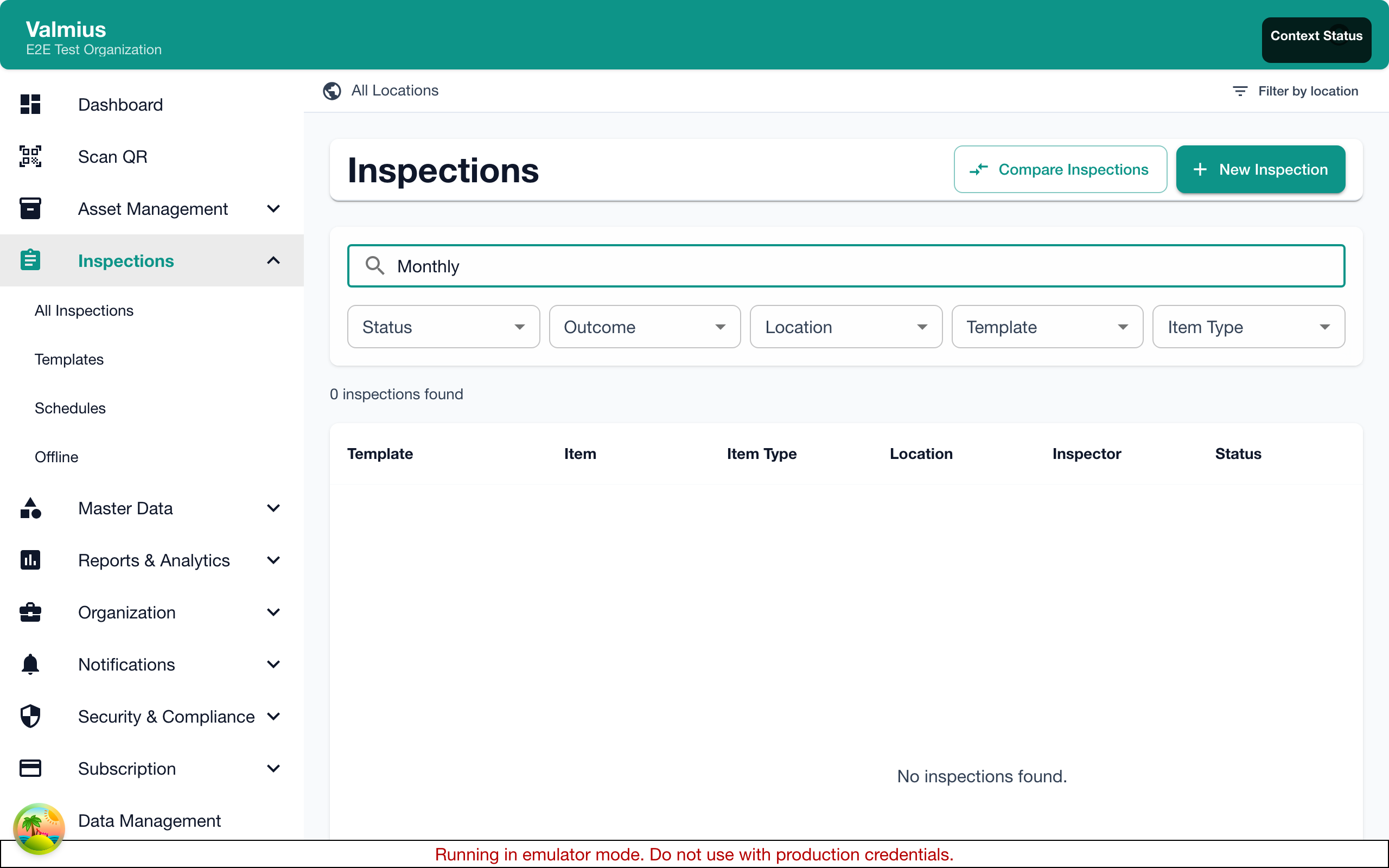
Use the search bar to find inspections:
- Search by item name
- Search by inspector name
- Search by serial number
- Search by notes content
Exporting History
Export Options
- Apply any desired filters
- Click Export
- Choose format:
| Format | Use Case |
|---|---|
| CSV | Spreadsheet analysis |
| Excel | Formatted reports |
| Printable records |
Export Contents
Exports include:
- All visible columns
- Respects current filters
- Option to include detailed responses
- Option to include photos
Scheduled Exports
For regular reports:
- Go to Reports > Scheduled Reports
- Create a new schedule
- Configure inspection data
- Set delivery frequency
Inspection Statistics
View aggregate data:
Summary Statistics
- Total inspections (period)
- Pass rate percentage
- Average inspections per day/week
- Most inspected items
Charts and Graphs
- Pass/Fail trend over time
- Inspections by location
- Results by item type
- Inspector activity
Access from Reports > Inspection Summary.
Audit Trail
Every inspection creates audit records:
- When started
- When submitted
- Who performed
- Data entered
This supports compliance requirements.
Permissions
What you can see depends on your role:
| Role | Access |
|---|---|
| Admin | All inspections |
| Manager | Assigned locations |
| User | Own inspections (typically) |
Data Retention
Inspection records are retained:
- According to your organization's settings
- Required periods for compliance
- Available for audits and reporting
Contact your administrator about retention policies.
Common Tasks
Find a Specific Inspection
- Use filters to narrow down
- Search by item or inspector
- Sort by date to locate
Review Failed Inspections
- Filter by Result: Failed
- Sort by date (newest first)
- Review each failure
- Track corrective actions
Generate Compliance Reports
- Set appropriate date range
- Filter by item type or location
- Export to PDF
- Include in compliance documentation
Next Steps
- Performing Inspections - Conduct new inspections
- Upcoming Inspections - View scheduled work
- Inspection Results - Understand outcomes