Viewing Items
Learn how to browse and find equipment in your Kuviq inventory.
Accessing the Items List
- Click Items in the main navigation
- The items list shows all equipment you have access to
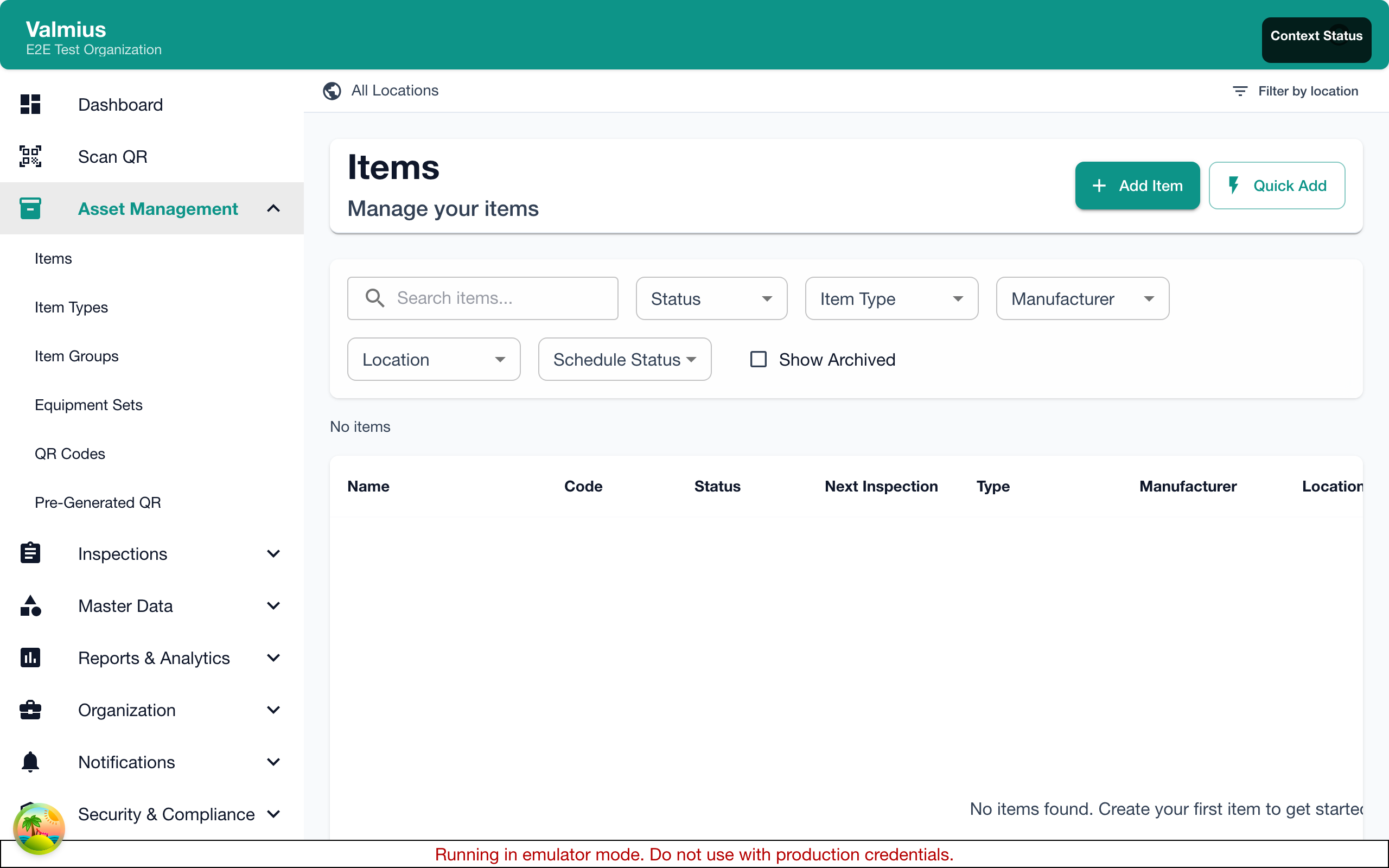
If you're assigned to specific locations, you'll only see items at those locations. Contact your administrator if you need access to additional locations.
Understanding the Items List
Each item in the list displays:
| Field | Description |
|---|---|
| Name | The item's name |
| Item Type | Category (e.g., Fire Extinguisher, Tool) |
| Location | Where the item is located |
| Status | Current status indicator |
| Last Inspection | Date of most recent inspection |
| Next Due | When the next inspection is scheduled |
Status Indicators
Items show color-coded status:
| Color | Status | Meaning |
|---|---|---|
| 🟢 Green | Available | Ready for use, inspections current |
| 🟡 Yellow | Due Soon | Inspection due within warning period |
| 🔴 Red | Overdue | Inspection past due date |
| ⚪ Gray | Retired | No longer in service |
Searching for Items
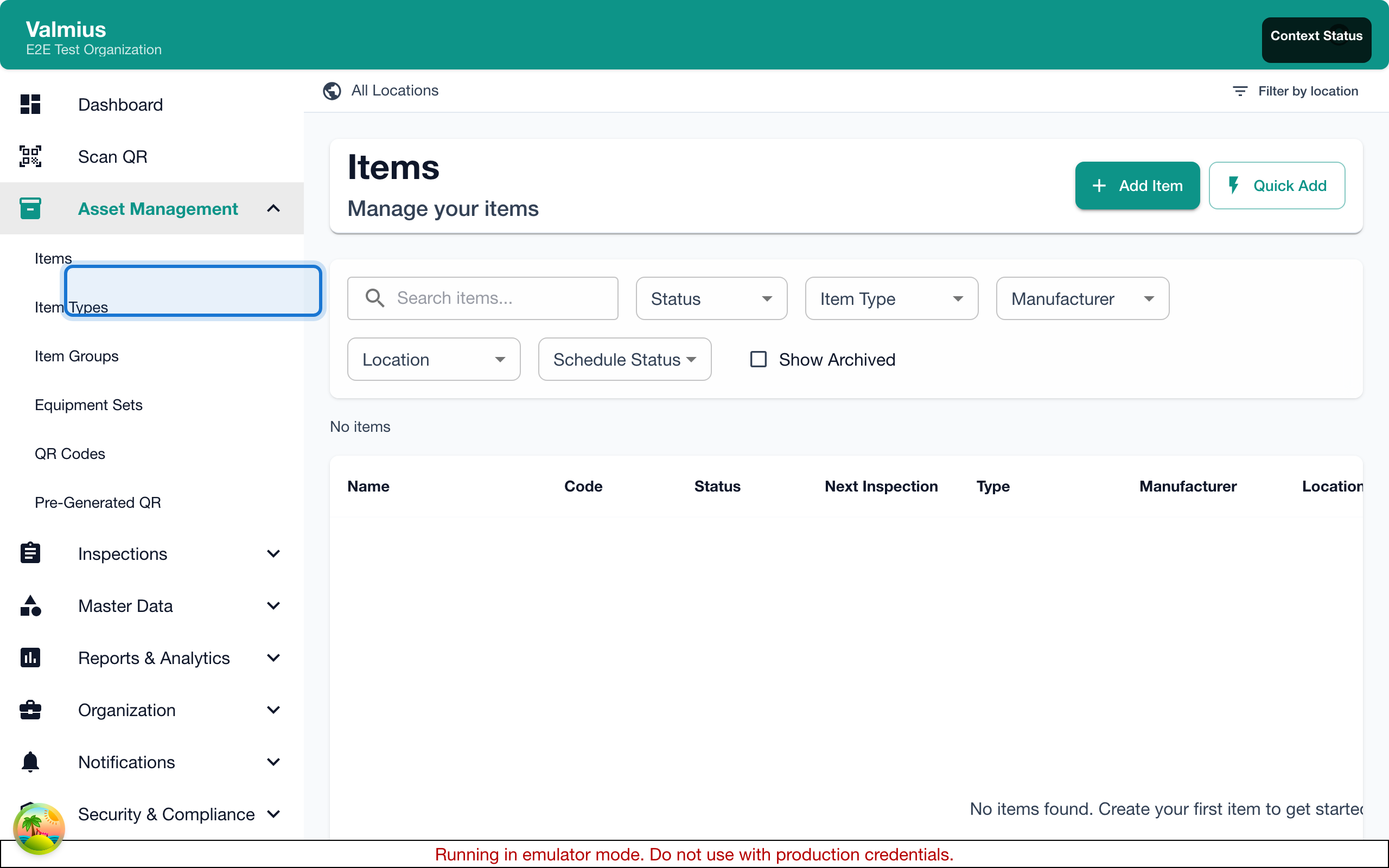
Quick Search
Use the search bar at the top of the items list:
- Click in the search field
- Type your search term
- Results filter automatically as you type
You can search by:
- Item name - Full or partial name
- Serial number - Manufacturer's serial
- Item identifier - Kuviq ID
Advanced Filters
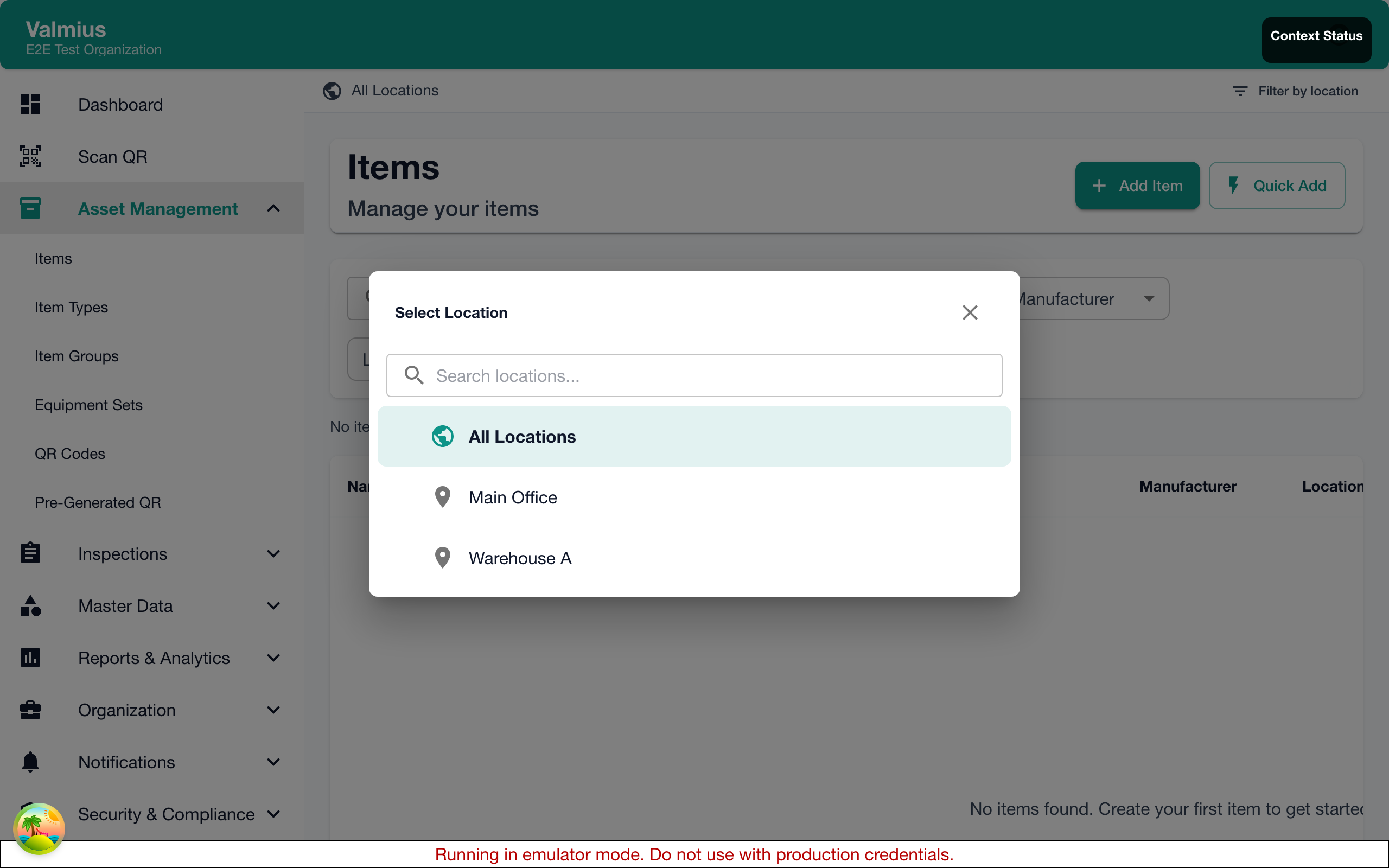
Click Filter to narrow results by:
| Filter | Options |
|---|---|
| Location | Select one or more locations |
| Item Type | Filter by equipment category |
| Status | Available, In Use, Needs Attention, etc. |
| Manufacturer | Filter by equipment brand |
| Inspection Status | Current, Due Soon, Overdue |
Applying Filters
- Click Filter button
- Select your criteria
- Click Apply
- Active filters show as tags below the search bar
- Click X on a tag to remove that filter
- Click Clear All to reset
Sorting Items
Click column headers to sort:
| Column | Sort Options |
|---|---|
| Name | A-Z or Z-A |
| Last Inspection | Most recent first / oldest first |
| Next Due | Soonest first / furthest first |
| Date Added | Newest first / oldest first |
An arrow indicates the current sort direction.
Viewing Item Cards
Depending on your display settings, items may show as:
List View
Compact rows showing key information:
- Item name and type
- Location
- Status badge
- Quick action buttons
Card View
Larger cards with more detail:
- Item photo (if available)
- Full status information
- Inspection dates
- Action buttons
Toggle between views using the view switcher icon.
Quick Actions
From the items list, you can quickly:
| Action | How |
|---|---|
| View Details | Click the item name |
| Start Inspection | Click the inspect button (📋) |
| View QR Code | Click the QR icon |
| Edit Item | Click the edit button (✏️) |
Selecting Multiple Items
For bulk operations:
- Click the checkbox next to items
- Or click Select All for the current page
- Use the bulk action menu:
- Print QR codes
- Export data
- Change location (if permitted)
Pagination
For large inventories:
- Use page numbers at the bottom
- Adjust items per page (10, 25, 50, 100)
- Use Previous / Next to navigate
Refreshing the List
The items list auto-updates periodically. To manually refresh:
- Click the Refresh button
- Or use keyboard shortcut (if available)
Exporting Items
To export your items list:
- Apply any desired filters
- Click Export
- Choose format:
- CSV - For spreadsheets
- Excel - Formatted workbook
- Download the file
The export includes all visible columns and respects your current filters.
Next Steps
- Item Details - Learn about the full item view
- Creating Items - Add new equipment
- Performing Inspections - Start inspecting