Item Groups
Item Groups is a planned feature that is not yet implemented. This documentation describes the planned functionality for future reference. Check back for updates.
Learn how to organize items into groups for easier management.
What Are Item Groups?
Item groups allow you to:
- Organize related items together
- Schedule inspections for multiple items at once
- Perform bulk operations on grouped items
- Report on collections of equipment
Example Use Cases
| Group Name | Purpose |
|---|---|
| "Critical Safety Equipment" | High-priority items requiring frequent inspection |
| "Building A - Fire Safety" | All fire-related items in one building |
| "2024 New Equipment" | Track newly purchased items |
| "Monthly Audit Items" | Items included in monthly compliance checks |
| "Mobile Equipment Pool" | Shared equipment that moves between locations |
Viewing Item Groups
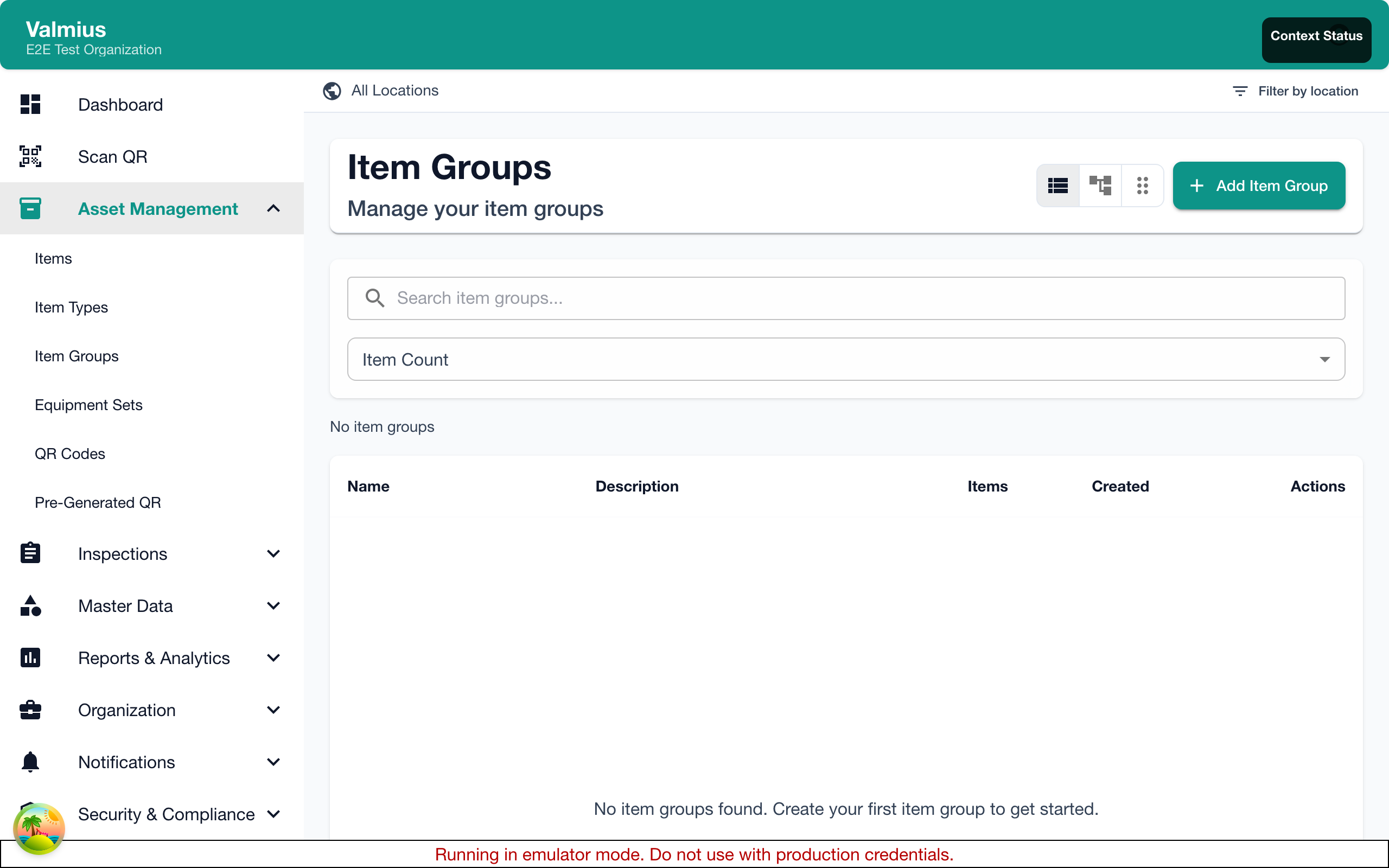
Accessing Groups
- Navigate to Items > Item Groups
- View all groups in your organization
Group Information
Each group shows:
| Field | Description |
|---|---|
| Name | Group name |
| Description | What the group contains |
| Item Count | Number of items in the group |
| Location | Associated location (if any) |
| Created | When the group was created |
Creating a Group
Creating groups typically requires Manager or Admin permissions.
Steps to Create
- Go to Items > Item Groups
- Click Add Group or +
- Fill in group details:
- Name - Descriptive name
- Description - Purpose of the group
- Location - Associated location (optional)
- Click Create
Location-Based Groups
Groups can be associated with a location:
- Items in the group should be at that location
- Helps organize by physical area
- Useful for location-based inspections
Adding Items to Groups
From the Group
- Open the group
- Click Add Items
- Search or browse for items
- Select items to add
- Click Add to Group
From an Item
- Open the item's details
- Find the Groups section
- Click Add to Group
- Select the group(s)
- Save
Bulk Add
- Go to Items list
- Select multiple items (checkboxes)
- Click Bulk Actions > Add to Group
- Select the target group
- Confirm
Removing Items from Groups
From the Group
- Open the group
- Find the item
- Click Remove or the X icon
- Confirm removal
From an Item
- Open the item's details
- Find the Groups section
- Click Remove next to the group name
Managing Groups
Editing a Group
- Open the group
- Click Edit
- Update name, description, or location
- Save
Deleting a Group
- Open the group
- Click Delete
- Confirm deletion
Deleting a group does not delete the items in it. Items remain in your inventory.
Scheduling Inspections for Groups
Groups simplify bulk scheduling:
Creating a Group Schedule
- Go to Inspections > Schedules
- Click Add Schedule
- Set Target Type to "Item Group"
- Select the group
- Choose the inspection template
- Set frequency
- Save
How Group Scheduling Works
- Inspections are created for all items in the group
- Adding items to the group includes them in future inspections
- Removing items excludes them from future inspections
- Current/in-progress inspections are not affected
Bulk Operations on Groups
Perform actions on all items in a group:
| Operation | Description |
|---|---|
| Print QR Codes | Generate labels for all items |
| Export | Download group data |
| Change Location | Move all items (if permitted) |
Performing Bulk Operations
- Open the group
- Click Bulk Actions
- Select the operation
- Confirm
Groups in Reports
Groups appear in various reports:
- Group Summary Report - Items per group
- Inspection Status by Group - Compliance overview
- Group Comparison - Compare groups
Creating Group Reports
- Go to Reports > Report Builder
- Select "Item Group" as a dimension
- Choose metrics and filters
- Generate report
Best Practices
Naming Groups
- Use descriptive, consistent names
- Include purpose or criteria
- Consider including location if relevant
Good names:
- "Fire Extinguishers - Building A"
- "Monthly Safety Audit Items"
- "High-Risk Equipment"
Avoid:
- "Group 1"
- "Stuff"
- "Items"
Organizing with Groups
| Strategy | Description |
|---|---|
| By Location | Group items by building, floor, or area |
| By Type | Group similar equipment together |
| By Schedule | Group items with same inspection frequency |
| By Priority | Group critical vs. standard items |
| By Project | Group items for specific projects |
Maintaining Groups
- Review group membership periodically
- Remove items that no longer belong
- Update descriptions when purpose changes
- Delete unused groups
Groups vs. Item Types
| Use Groups When | Use Item Types When |
|---|---|
| Temporary organization | Permanent categorization |
| Cross-category grouping | Defining custom fields |
| Scheduling convenience | Template assignment |
| Reporting flexibility | Consistent data structure |
Groups vs. Equipment Sets
| Use Item Groups When | Use Equipment Sets When |
|---|---|
| Bulk scheduling needed | Individual item inspection required |
| Organizational grouping | Items physically used together |
| Hierarchical structure needed | Compliance tracking needed |
| Same inspection for all items | Different inspection schedules per item |
See Equipment Sets for more information on managing equipment that requires individual inspection tracking.
One Item, Multiple Groups
Items can belong to multiple groups:
- A fire extinguisher might be in:
- "Building A - Fire Safety"
- "Monthly Inspection Items"
- "Critical Equipment"
This provides flexible organization without duplication.
Common Questions
How many groups can an item be in?
There's no limit. Add items to as many groups as needed.
Do groups affect where items appear?
No. Items still appear based on their location. Groups are an additional organizational layer.
Can I create hierarchical groups?
Groups are flat (no parent-child relationships). Use naming conventions for hierarchy:
- "Building A"
- "Building A - Floor 1"
- "Building A - Floor 2"
Next Steps
- Creating Items - Add items to groups during creation
- Viewing Items - Filter by group
- Equipment Sets - Learn about equipment sets for individual item tracking
- Upcoming Inspections - View group inspection schedules